
How to Authenticate with the FormRobin API
The FormRobin API accepts Bearer tokens. Create a Personal Access Token under Settings → API, or get a token from the login endpoint with your email and password.
Which authentication methods can I use?
Every API request needs a token in the Authorization: Bearer header. There are two ways to get one:
- Personal Access Token - created in your account under Settings → API. Best for integrations and scripts: no password is sent.
- Login endpoint - send your email and password to
/api/jwt/loginand receive a token in the response. Useful when a script has to obtain its own token.
| Method | Where you get it | Best for |
|---|---|---|
| Personal Access Token | Settings → API → Create New Token | Integrations and scripts; no password is sent |
| Login endpoint | POST your email and password to /api/jwt/login |
Scripts that obtain their own token |
| OAuth client | Settings → API → Create New Client | Another application requesting access through the OAuth sign-in flow |
Both kinds of token work the same way, last one year, and appear in the Personal Access Tokens list on the API page, where you can delete them. The API page also manages OAuth clients:
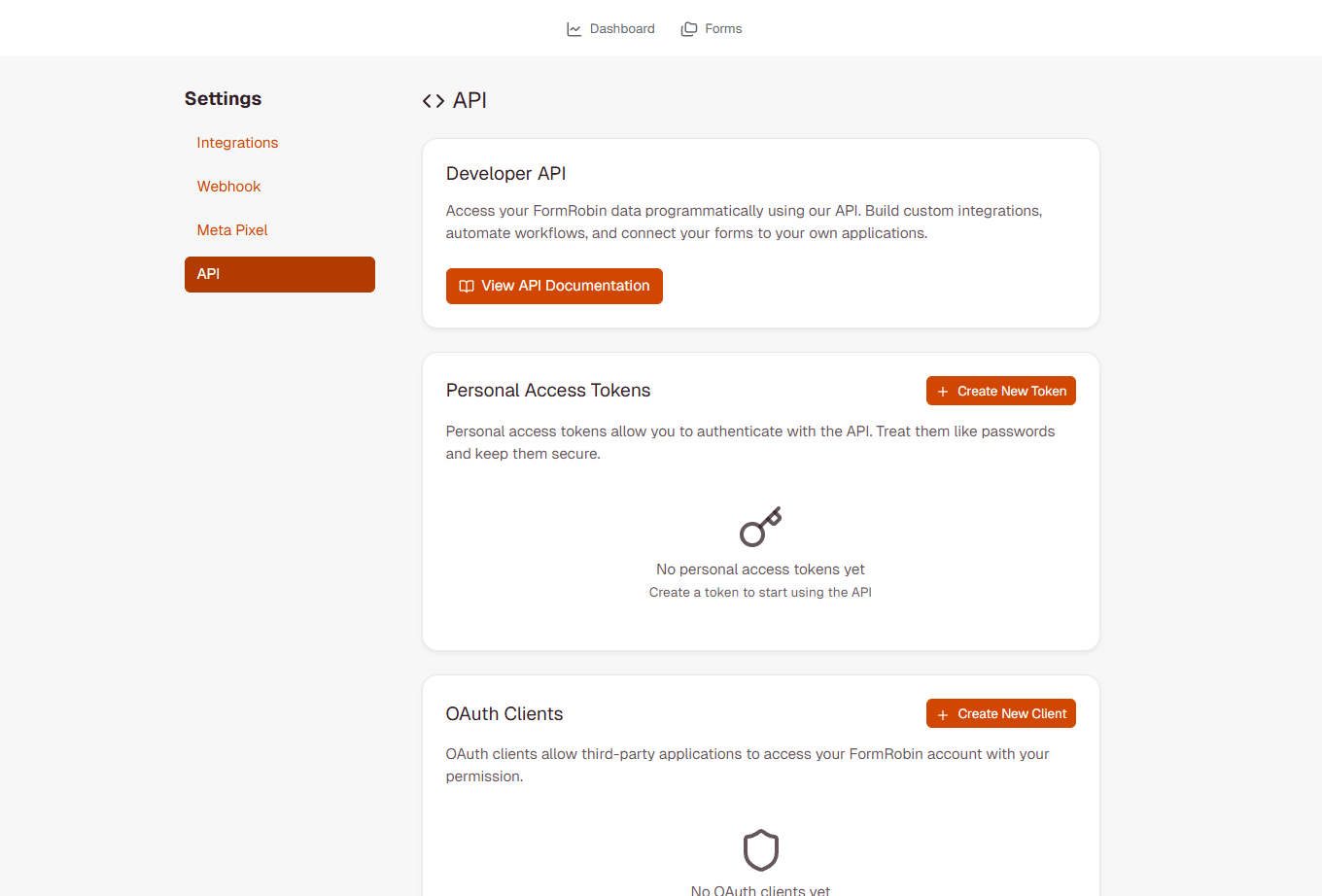
The API is available on both plans, Free Plan and Individual Plan.
Method 1: Personal Access Tokens
How do I create a token?
- Open the account menu in the top right and click Settings, then API in the Settings sidebar.
- In Personal Access Tokens, click Create New Token.
- Enter a Token Name that tells you where the token is used (for example "Zapier Connection").
- Click Create Token.
- The token appears in a yellow banner at the top of the page ("Copy your token now. You won't be able to see it again!"). Click Copy and store it somewhere safe.
Important: the token is shown only once. If you lose it, delete it and create a new one.
How do I use a Personal Access Token?
Authorization: Bearer YOUR_PERSONAL_ACCESS_TOKEN
curl https://formrobin.com/api/v1/forms \
  -H "Authorization: Bearer YOUR_PERSONAL_ACCESS_TOKEN" \
  -H "Accept: application/json"
How do I manage my tokens?
The Personal Access Tokens table lists every token with its Name, Created date and a Delete button. Tokens that came from the login endpoint are listed too, named "FormRobin". Deleting a token asks you to confirm ("This cannot be undone."); anything using that token loses access immediately.
Method 2: The Login Endpoint
Login Endpoint
POST https://formrobin.com/api/jwt/login
Request Format
Content-Type: application/json

{
  "email": "your-email@example.com",
  "password": "your-password"
}
You can send username instead of email; its value is used as the email address.
Success Response
{
  "access": "eyJ0eXAiOiJKV1QiLCJhbGc...",
  "token_type": "bearer",
  "expires_in": 31536000
}
- access - your token; send it as the Bearer token
- token_type - always "bearer"
- expires_in - the token lifetime in seconds (one year)
Each successful login creates a new token, which then appears in your Personal Access Tokens list. Reuse a token until it expires instead of logging in for every request.
Error Response
Wrong email or password returns HTTP 401:
{
  "error": "Unauthorized"
}
OAuth Clients
OAuth clients let another application request access to a FormRobin account through the OAuth sign-in flow, instead of asking for a token.
How do I create an OAuth client?
- Go to Settings → API.
- In OAuth Clients, click Create New Client.
- Enter a Client Name and a Redirect URL (where users are sent after authorizing, for example
https://example.com/callback). - Click Create Client.
- Copy the client secret from the yellow banner ("Copy your client secret now. You won't be able to see it again!").
Managing OAuth Clients
The OAuth Clients table shows each client's Name, Client ID and Redirect URL. Click Edit to change the name or redirect URL (the Client ID cannot be changed), or Delete to remove the client.
How do I use my token in requests?
Whichever way you got it, send the token in the Authorization header of every API request. The API answers in JSON; the Accept: application/json header is optional.
Complete Example Request
GET https://formrobin.com/api/v1/forms
Authorization: Bearer YOUR_TOKEN
Accept: application/json
How do I check that my token works?
To confirm a token works and see which account it belongs to:
GET https://formrobin.com/api/v1/me
Authorization: Bearer YOUR_TOKEN
{
  "data": {
    "id": 123,
    "name": "Your Name",
    "email": "your-email@example.com",
    "created_at": "2026-01-15T10:30:00.000000Z",
    "updated_at": "2026-01-15T10:30:00.000000Z"
  }
}
Rate Limiting
The API allows 60 requests per minute, counted per user (or per IP address for requests without a valid token). Over the limit you receive HTTP 429 Too Many Requests; wait for the next minute and retry, ideally with exponential backoff.
Code Examples
cURL Example
# Step 1: log in and get a token
curl -X POST https://formrobin.com/api/jwt/login \
  -H "Content-Type: application/json" \
  -d '{"email": "your-email@example.com", "password": "your-password"}'

# Step 2: use the token
curl https://formrobin.com/api/v1/forms \
  -H "Authorization: Bearer YOUR_TOKEN"
JavaScript (Fetch API) Example
// Server-side JavaScript (for example Node.js)
const login = await fetch('https://formrobin.com/api/jwt/login', {
  method: 'POST',
  headers: { 'Content-Type': 'application/json' },
  body: JSON.stringify({ email: 'your-email@example.com', password: 'your-password' })
});
const { access: token } = await login.json();

const res = await fetch('https://formrobin.com/api/v1/forms', {
  headers: { 'Authorization': `Bearer ${token}` }
});
const forms = await res.json();
Python (requests) Example
import requests

login = requests.post('https://formrobin.com/api/jwt/login',
                      json={'email': 'your-email@example.com', 'password': 'your-password'})
token = login.json()['access']

forms = requests.get('https://formrobin.com/api/v1/forms',
                     headers={'Authorization': f'Bearer {token}'}).json()
Token Expiration
Personal Access Tokens and login tokens both expire one year after they are created. After that, requests with the token return HTTP 401 Unauthorized. There is no refresh token: create a new Personal Access Token or log in again.
Recommended Strategy
// Pseudo-code
response = callApi(url, token)
if (response.status === 401) {
  token = getNewToken()   // new Personal Access Token or /api/jwt/login
  response = callApi(url, token)
}
How should I store my tokens?
- Server-side only - keep tokens out of browser code and mobile apps, where anyone can read them
- Environment variables - store tokens in environment variables or a secrets manager, not in code
- Never commit tokens to version control
- One token per integration - so you can delete one without breaking the others
Security Best Practices
- Always call the API over HTTPS
- Treat tokens like passwords
- Delete tokens you no longer use under Settings → API
- If a token may have leaked, delete it and create a new one
Limitations
- No refresh tokens: get a new token when one expires
- Account-level access: a token can do everything the API allows for your account
- No scopes: you cannot limit a token to specific endpoints
- Rate limit: 60 requests per minute
Troubleshooting
The login endpoint returns 401 Unauthorized
- Check the email and password; log in on formrobin.com with the same details to confirm them.
- Send JSON with
Content-Type: application/jsontohttps://formrobin.com/api/jwt/login.
API requests return 401 Unauthorized
- Check the header format:
Authorization: Bearer YOUR_TOKEN(with a space after "Bearer"). - Use the
accessvalue from the login response, not the whole response. - Tokens expire after one year, and a deleted token stops working immediately. Create a new one under Settings → API.
429 Too Many Requests
- You sent more than 60 requests in a minute. Wait for the next minute, cache responses and retry with backoff. Rate limits for every endpoint: FormRobin API: Getting Started.
I lost my Personal Access Token
- Tokens are shown only once. Delete the old token and create a new one.
Still stuck? Email support@formrobin.com with the endpoint you called, the HTTP status and the time of the request (never send your token).
Frequently Asked Questions
How long do tokens last?
One year, for both Personal Access Tokens and tokens from the login endpoint. After that, create a new token.
Can I use the API without sending my password?
Yes. Create a Personal Access Token under Settings → API and send it as the Bearer token.
How do I revoke a token?
Go to Settings → API and click Delete next to the token. Tokens created by the login endpoint are listed there as "FormRobin".
What is the API rate limit?
60 requests per minute per user. See FormRobin API: Getting Started for the endpoints and Creating Forms via API for examples.