
Where to Find Your FormRobin Account Settings
FormRobin account settings live in three places: User settings (click your name), Settings for integrations and API, and Plan for usage.
| Where | How to open it | What you find there |
|---|---|---|
| User settings | Click your name (top right) | Profile picture, name and email address |
| Settings | Menu (three lines) → Settings | Integrations, Webhook, Meta Pixel and API |
| Plan | Menu (three lines) → Plan | Your plan and usage meters |
What can I change in User settings?
The User settings page holds your profile: profile picture, name and email address.
To open it:
- Click your name in the top-right corner of the navigation bar (on larger screens), or
- Click the menu icon (three lines) in the top-right corner and select your name (on smaller screens).
For a tour of the navigation bar and its menus, see Dashboard Overview and Navigation.
Profile Picture
- Upload a JPG, PNG or GIF image of up to 2 MB, or keep the default colored initial.
- If you uploaded a picture, Remove avatar switches back to the default.
Name and Email
- Name: your display name
- Email: your login email; form notification emails are also sent here
After making changes, click Save changes.
What is in the Settings hub?
Open the menu icon (three lines) in the top-right corner and select Settings. A sidebar on the left lists four pages:
Integrations
Connect third-party services to your forms. Available on both plans:
- Zapier: connect FormRobin to thousands of apps with Zapier (see Connecting FormRobin to Zapier)
- SendFox: add form respondents to SendFox lists. Requires a paid SendFox plan that includes API access — see SendFox Email List Integration.
- Google Sheets: send form responses to a spreadsheet
Webhook (Individual Plan)
Send every completed submission to your own URL: enter it in Webhook URL and click Save Webhook Settings (see Setting Up Webhooks). On the Free Plan, a badge marks this page in the sidebar and the page shows an upgrade prompt.
Meta Pixel (Individual Plan)
Enter your Meta Pixel ID and click Save Meta Pixel Settings to track form views and submissions on all your published forms. On the Free Plan, a badge marks this page and the page shows an upgrade prompt.
API
- API reference: see FormRobin API: Getting Started for the endpoints and examples.
- Personal Access Tokens: click Create New Token, enter a Token Name and click Create Token. Copy the token right away — it is shown only once.
- OAuth Clients: click Create New Client, enter a Client Name and Redirect URL, and click Create Client. The client secret is also shown only once.
What does the Plan page show?
Open the menu icon (three lines) in the top-right corner and select Plan to see your plan and usage.
Plan Information
The top card shows your plan and, on the Individual Plan, the date it was activated. On the Free Plan, an Upgrade button opens the pricing page.
Usage and Limits
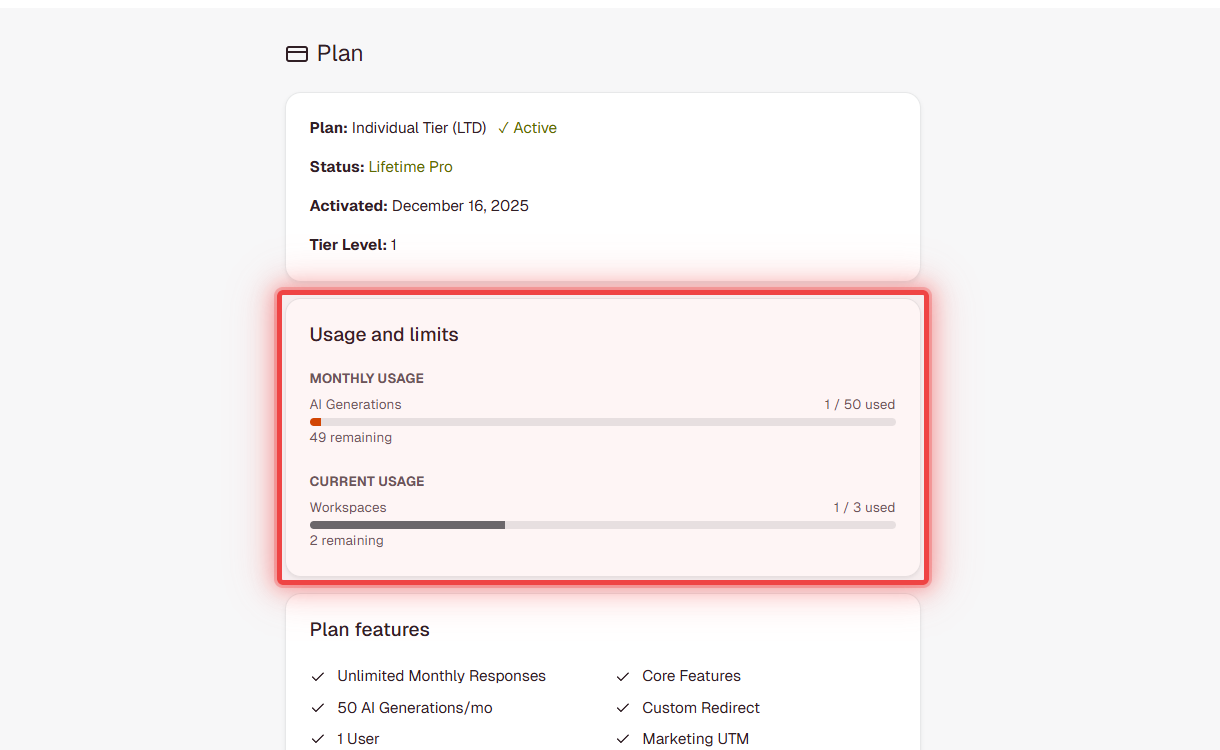
- AI Generations (monthly usage): "X / Y used" and how many remain; when none are left, the meter shows the reset date (the 1st of next month)
- Workspaces (current usage): how many of your workspaces you use
Each bar turns yellow at 70% and red at 90% of the limit. Forms and responses are unlimited on both plans, so they have no meter. See AI Form Generation Limits and Usage.
Plan Features
Below the meters, the Plan features card lists what your plan includes.
How do I change my email?
- Open User settings (click your name in the top right).
- Change the Email field.
- Click Save changes.
- Open the confirmation email sent to the new address and click its link.
Important: your email changes only after you click the confirmation link. The new address cannot already belong to another FormRobin account.
How do I change my password?
FormRobin does not have a password change option in account settings. To set a new password, use the Forgot your password? link on the login page:
- Log out.
- Go to the login page at formrobin.com/login.
- Click the Forgot your password? link and enter your account email.
- Open the email you receive and follow its link to choose a new password.
Troubleshooting
Changes on User settings are not saving
- Click Save changes after editing, and read any error shown on the page (for example, an email already in use or an image over 2 MB or in another format).
My email address has not changed
- The change needs confirmation: open the email sent to the new address (check spam too) and click the link.
I can't change my password in settings
- Password changes are not available in User settings. Use the Forgot your password? link on the login page.
Webhook or Meta Pixel shows an upgrade prompt
- Both are Individual Plan features (see Understanding FormRobin Plans).
Still stuck? Contact support at support@formrobin.com with your account email and the name of the page you are on.
Frequently Asked Questions
What is the difference between Settings and Plan?
Both are in the menu (three lines) at the top right. Settings opens integrations, webhook, Meta Pixel and API; Plan shows your plan and usage meters.
Can I change my password in settings?
No. FormRobin does not have a password change option in settings; use the Forgot your password? link on the login page.
How do I upgrade from Free to Individual?
On the Plan page, click Upgrade to open the pricing page.
What happens to my API tokens if I change my email?
Nothing. Tokens belong to your account, not to your email address, and keep working.