
How to Connect FormRobin to Zapier and Other Apps
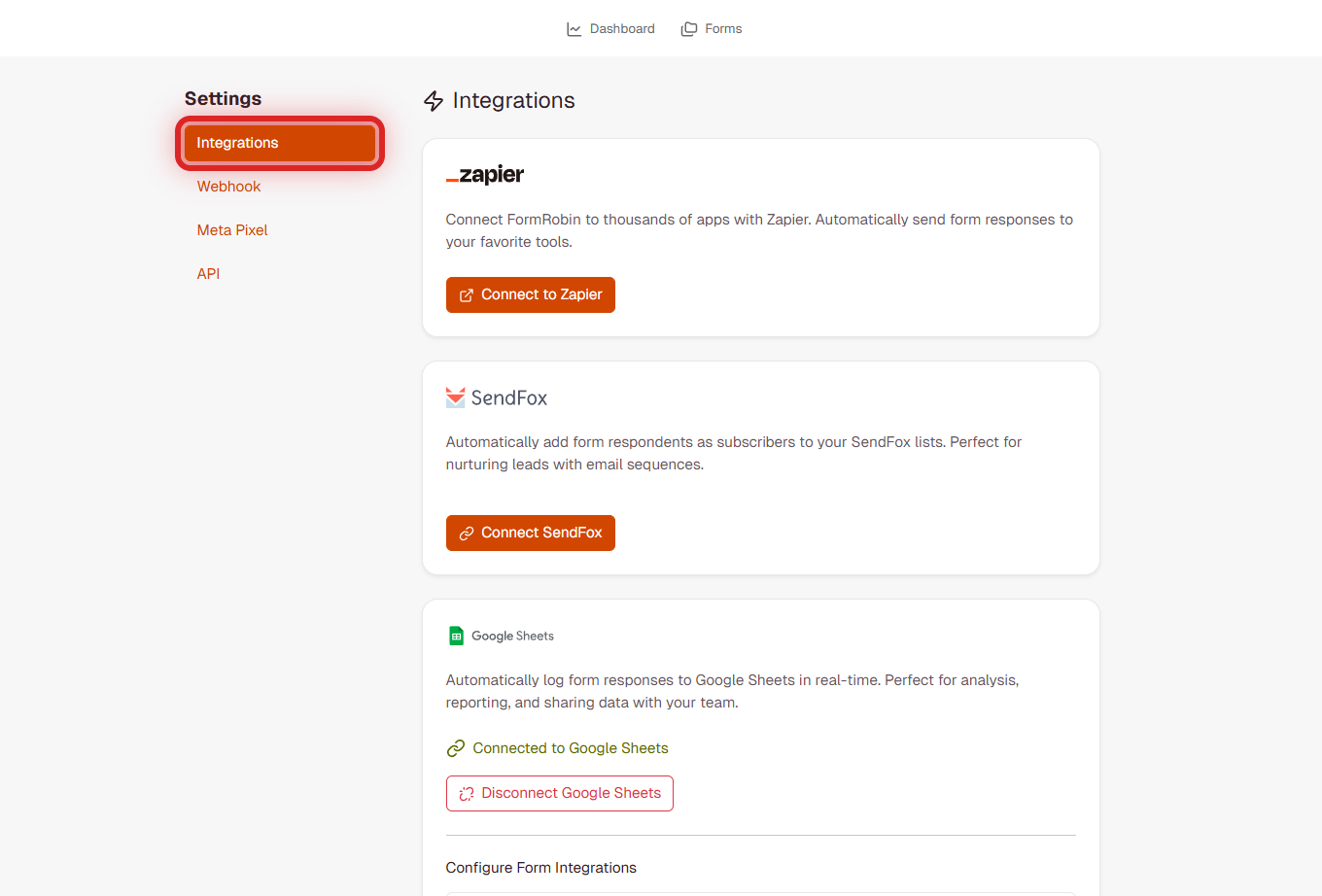
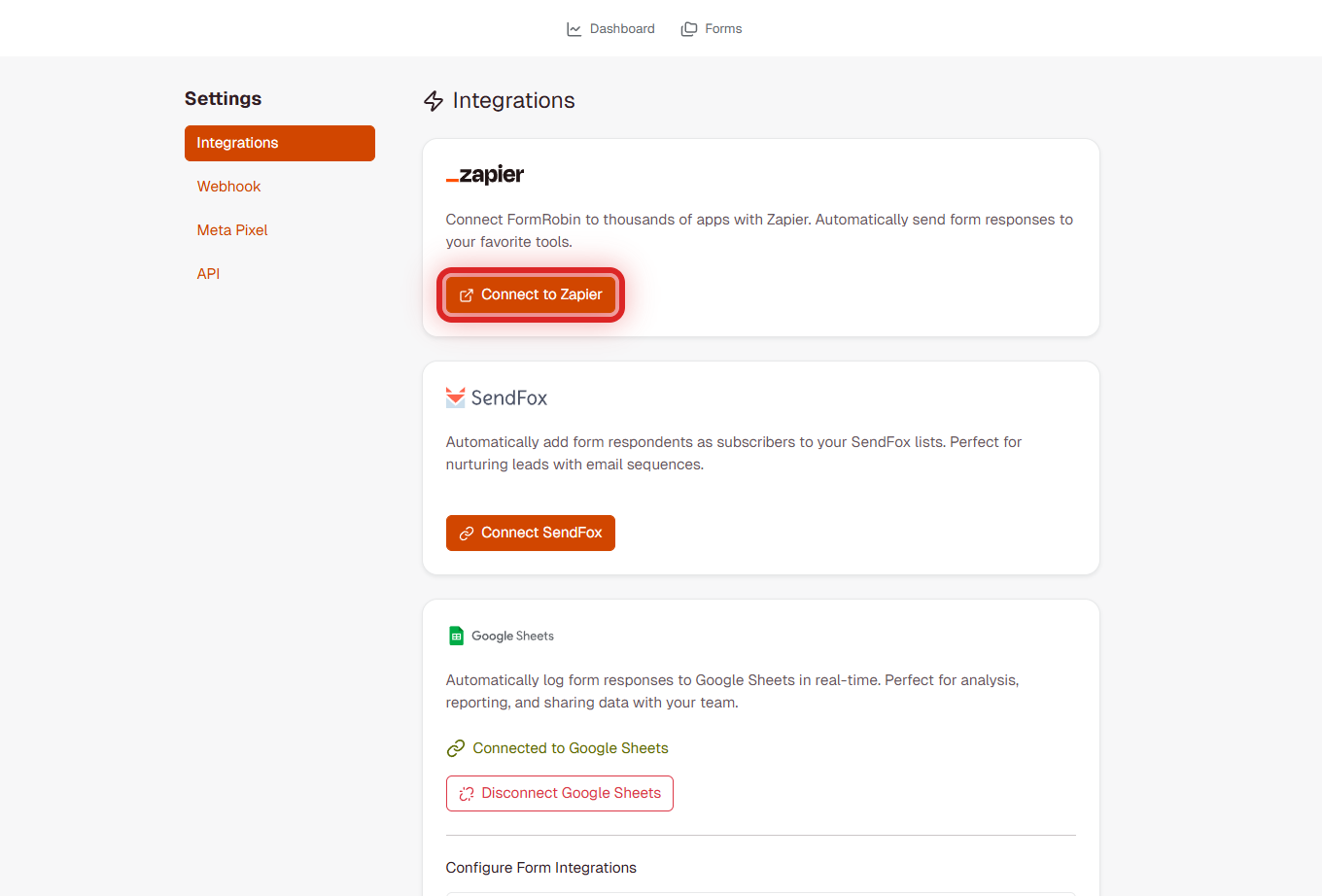
Connect FormRobin to thousands of apps with Zapier, no coding needed. Open Settings → Integrations and click Connect to Zapier to accept the FormRobin invite.
What Is Zapier?
Zapier is an automation service that connects apps. With FormRobin's Zapier app you can send form responses to other tools automatically, for example to Slack, Google Sheets or Notion, and build multi-step workflows ("Zaps") without code.
Plan requirement: the Zapier integration is included on both FormRobin plans, Free Plan and Individual Plan. Zapier's own plan decides how many tasks you can run and how often Zaps check for new responses.
What You Can Connect
Any app available on Zapier can receive your form responses, for example:
- Spreadsheets and databases - add a row or record for each response
- Team chat - post a message for each new response
- Email marketing and CRMs - add the respondent as a contact or lead
- Project tools - create a task or card for each request
How do I set up the Zapier integration?
Step 1: Accept the FormRobin Invite in Zapier
- Open the account menu in the top right and select Settings. The Integrations page opens (it is also in the Settings sidebar).
- In the Zapier section, click Connect to Zapier.
- Zapier opens in a new tab with the invitation to FormRobin's Zapier app. Accept it.
Step 2: Connect Your FormRobin Account in Zapier
- When Zapier asks you to connect FormRobin, sign in to your FormRobin account.
- Approve the access request. Zapier then reads your forms and responses on your behalf.
Step 3: Create Your First Zap
- In Zapier, choose FormRobin as the trigger app and pick its trigger for new form responses.
- Select the FormRobin form to watch.
- Test the trigger. Submit a response on the live form first so Zapier has data to test with.
- Choose the action app and map the form answers to its fields.
- Test the action, then turn the Zap on.
How does the Zapier integration work?
- Someone submits your form.
- Zapier checks FormRobin for new responses on a schedule set by your Zapier plan, so Zaps do not run instantly.
- For each new response, your Zap runs its actions.
Available Triggers
FormRobin's Zapier app starts Zaps from new form responses. Everything else happens in the actions you add in Zapier.
Which response data is available in Zapier?
For each response, FormRobin provides the same data as its API (see FormRobin API: Getting Started):
- Every answer, with its question label
- Response ID, form ID and the completion time
- UTM parameters from the form's URL, the referring page and the landing page URL
- Device type, browser and version, operating system and IP address
Example Zap Workflows
Example 1: Form to Spreadsheet
Trigger: a new FormRobin response. Action: add a row to a Google Sheets spreadsheet, mapping each answer to a column. (FormRobin also has a built-in Google Sheets integration.)
Example 2: Lead Alert in Team Chat
Trigger: a new FormRobin response. Action: post a message such as "New lead: {Name} - {Email}" to a Slack channel.
Example 3: Multi-Step Registration
Trigger: a new FormRobin response. Action 1: add the registrant to an email list. Action 2: create a calendar event.
Zapier Best Practices
- Test with a real response before turning a Zap on
- Use Zapier filters to act only on certain responses
- Map every answer you need to the destination app
- Check your Zap history in Zapier when something does not arrive
Zapier Integration Limitations
- Not instant: Zapier checks for new responses on its own schedule
- Zapier task limits: set by your Zapier plan
- Files: uploaded files are not sent as attachments
- Zapier account needed: Zapier is a separate service with its own plans
Zapier vs Webhooks: Which to Use?
| Feature | Zapier | Webhooks |
|---|---|---|
| Setup | No coding | Needs your own endpoint |
| Speed | Scheduled checks (depends on your Zapier plan) | Sent right after each submission |
| Apps | Thousands of ready-made apps | Any URL that accepts JSON |
| FormRobin plan | Free Plan and Individual Plan | Individual Plan |
| Best for | Popular apps without code | Developers and custom systems |
See Setting Up Webhooks for Form Submissions.
Troubleshooting
I can't find FormRobin in Zapier
- FormRobin's Zapier app is shared through an invitation link. Use Connect to Zapier on the Integrations page and accept the invite.
My Zap doesn't run for new responses
- Make sure the Zap is turned on and watches the right form.
- Zapier checks on a schedule, so allow time before the Zap runs. Check the Zap history in Zapier for errors.
Some answers are missing in Zapier
- Submit a test response that answers every question, then reload the sample data in the Zap editor. Statement and Image blocks collect no answers, so they never appear (see Form Field Types Explained).
For Zapier account or billing questions, see Zapier's help center. Still stuck with FormRobin? Email support@formrobin.com with the form's name and the error from your Zap history.
Frequently Asked Questions
Do I need a paid Zapier account?
Not necessarily. Zapier has its own plans; they decide how many tasks you can run and how often Zaps check for new responses.
How quickly do Zaps run after a submission?
It depends on your Zapier plan, because Zapier checks for new responses on a schedule. For delivery right after each submission, use webhooks (Individual Plan).
Can one form feed several Zaps?
Yes. Each Zap reads your responses on its own.
Can I use Zapier and webhooks at the same time?
Yes. They work independently of each other and of FormRobin's built-in SendFox and Google Sheets integrations.