
What Question Types Can You Add to a Form?
FormRobin has 13 question types, from Short answer to File upload. Add one with the + button (Add a new question) in the form editor and pick the type from the menu.
Which field types are available?
The names below are the ones shown in the editor's question-type menu:
| Type | What respondents see or do |
|---|---|
| Short answer | A single line of text |
| Long answer | Several lines of text |
| Statement | A block of text for instructions or information (collects no answer) |
| An email address, checked when the form is submitted | |
| URL | A website address, checked when the form is submitted |
| Multiple choice | A list of options; respondents can tick one or more |
| Single choice | A dropdown list; respondents pick one option |
| Checkbox | A single tick box with your own label |
| Phone | A phone number with a country picker |
| Number | A numeric answer, checked when the form is submitted |
| Date | A date picker |
| File upload | Lets respondents attach a file |
| Image | Shows an image in your form (collects no answer) |

Text Fields
Short answer
Use for: names, job titles, cities and other brief answers. Supports placeholder text.
Long answer
Use for: comments, descriptions and detailed feedback. Supports placeholder text.
Specialized Fields
Use for: contact or work email addresses. When the form is submitted, FormRobin checks that the answer is a valid email address.
Number
Use for: quantities, ages, budgets and scores. When the form is submitted, FormRobin checks that the answer is a number. Number questions also work with the Greater than / Less than rules of conditional logic.
Phone
Use for: mobile or office numbers. The field shows a country picker, preselected from the respondent's location.
URL
Use for: websites, portfolios and profile links. When the form is submitted, FormRobin checks that the answer is a valid URL, such as https://example.com.
Date
Use for: birthdates, event dates and deadlines. Respondents choose the date with their browser's date picker.
Choice Fields
Multiple choice
- All options are shown at once
- Respondents can tick one or more options
- Best for: interests, services needed, preferred contact methods
Single choice
- Options appear in a dropdown list ("Select an option")
- Respondents pick exactly one option
- Best for: country, department, size, product category
Checkbox
- One tick box with a label you write, for example "I agree to the terms"
- The answer is ticked or not ticked
- Best for: consent, newsletter opt-in, confirmations
Content Blocks
Statement
- Shows text without collecting an answer
- Useful for section headers, instructions and disclaimers
- Not included in the CSV export
Example: add a Statement before sensitive questions to explain why you need the information.
Image
- Shows an image without collecting an answer: click Click to upload an image
- JPG, PNG, GIF, SVG or WebP, up to 10 MB
- Under Image settings: alt text ("Describe this image"), width (Full width, 75%, 50%, 25%) and alignment (Left, Center, Right)
- Best for: logos, product photos, diagrams
File upload
- Respondents attach one file per File upload question
- Under Field settings, choose the File types allowed and the Maximum file size (MB) — 10 MB by default, up to 50 MB
- Best for: resumes, screenshots, contracts, photos (see File Upload Field Setup and Limits)
How do I add a field?
- Open your form in the form editor.
-
Click the + button (Add a new question).
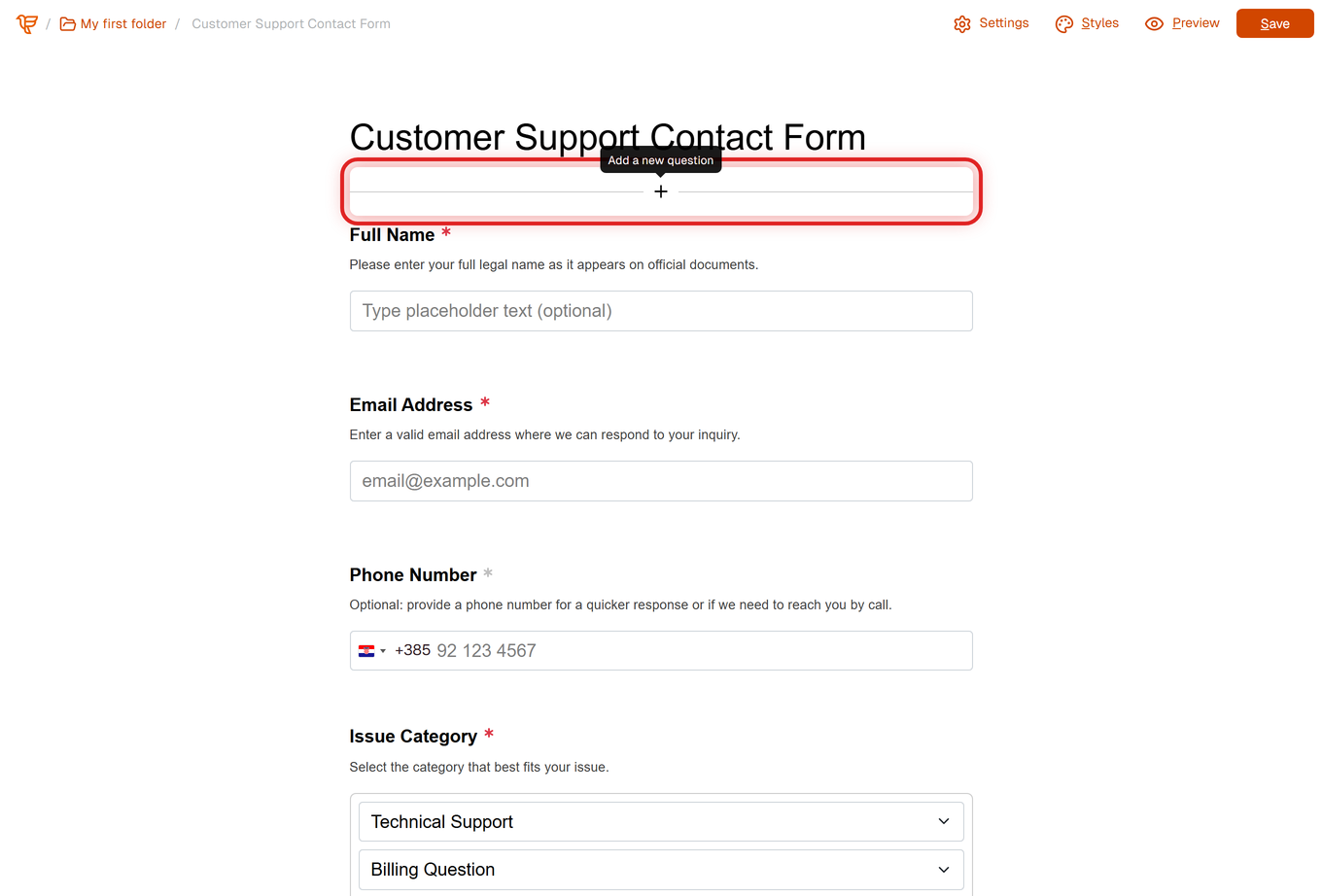
- Choose the question type from the menu.
- Type the question and, if you like, a description and placeholder text.
- Click Save.
Which settings do questions share?
- Question - the text respondents see
- Description - optional help text under the question
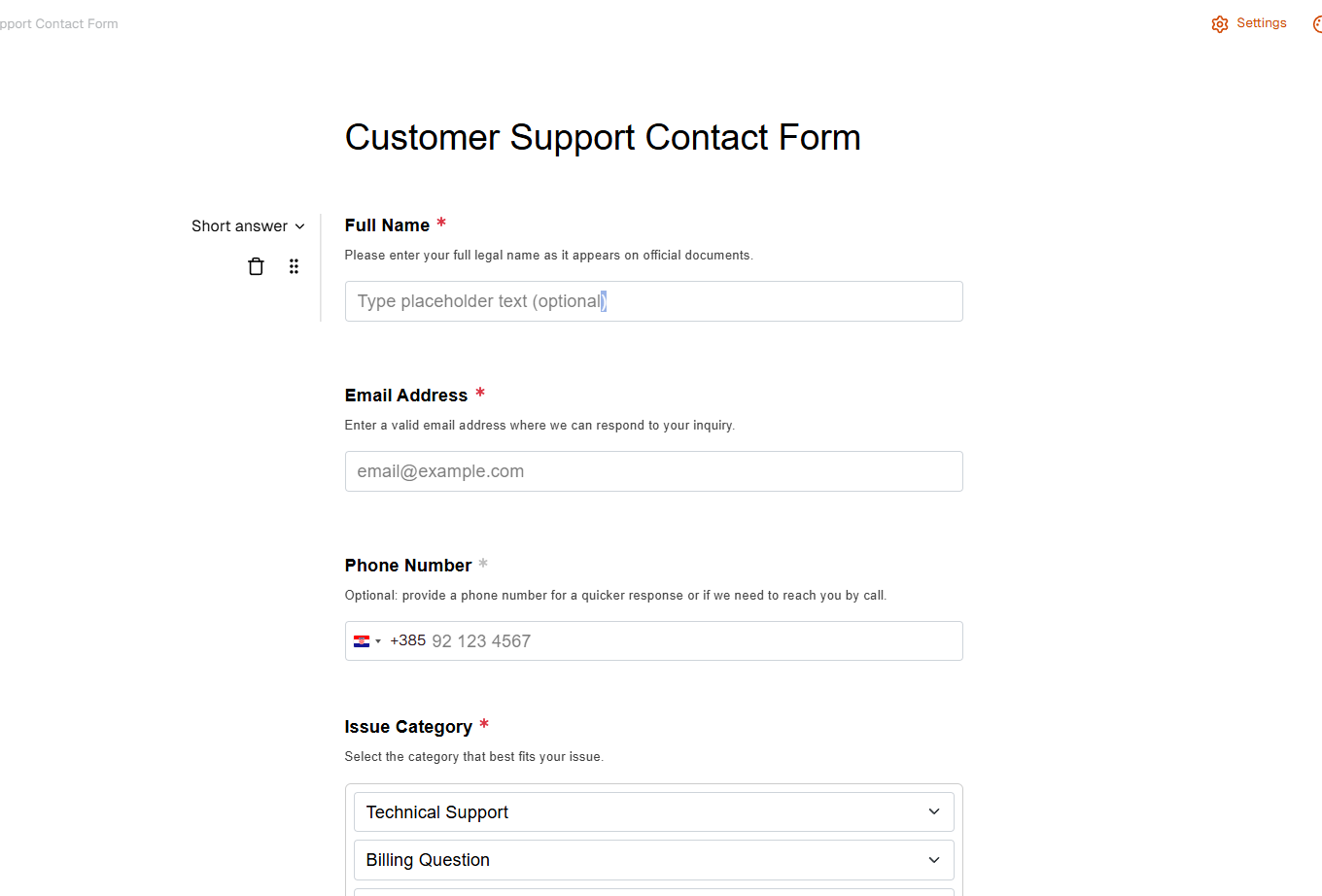
- Required - click the asterisk next to the question ("Require answer" / "Remove requirement"); on smaller screens use the question's ⋮ menu
- Placeholder - example text inside Short answer, Long answer, Email and URL fields
Which answers are checked?
When a respondent submits, FormRobin checks:
- Required questions have an answer (unless conditional logic hides them)
- Email answers are valid email addresses
- URL answers are valid website addresses
- Number answers are numbers
How do I choose the right field type?
- Collecting an email? Use Email, not Short answer, so the address is checked
- Respondents may pick several options? Use Multiple choice
- Exactly one option from a long list? Use Single choice
- A single agreement? Use Checkbox
- Instructions or visuals? Use Statement or Image
How do I reorder fields?
- Hover over the question and drag it by its handle (Drag to reorder). On smaller screens use Move question up / Move question down in the question's ⋮ menu.
- Click Save.
How do I edit a field?
- Click the question or description text and type to change it.
- To change a question's type, use the type menu that appears when you hover over the question.
- Click Save to keep your changes.
How do I delete a field?
- Hover over the question and click the trash icon (Delete question). On smaller screens use the question's ⋮ menu.
- Click Save.
Note: answers already collected for a deleted question no longer appear on the Sessions page or in CSV exports.
Field Best Practices
- Only ask what you need - fewer questions, more completions
- Use clear questions and placeholder examples
- Group related questions and add a Statement before each section
- Use the specific types (Email, URL, Number) so answers are checked
Troubleshooting
I can't find a field type
- All 13 types are in the + menu on both plans. The menu uses the names above: for example, the dropdown type is Single choice and text types are Short answer and Long answer.
Respondents see an error for their email, URL or number
- The answer did not pass the check for that type. Make sure the question type matches what you ask, and use placeholder text to show the expected format. The exact messages are listed in Troubleshooting: Responses Not Saving.
My image does not upload
- Use a JPG, PNG, GIF, SVG or WebP file of up to 10 MB, then click Save.
Still stuck? Contact support at support@formrobin.com with the form link and the question type you are using.
Frequently Asked Questions
Can I change a question's type after creating it?
Yes. Hover over the question and pick another type from its type menu, then click Save.
Can I duplicate a single question?
No. Add a new question with the + button, or duplicate the whole form (see Duplicating Forms).
When do I use Checkbox and when Multiple choice?
Use Checkbox for one tick box, such as agreeing to terms. Use Multiple choice when respondents can pick several options from a list.
What's the difference between Image and File upload?
Image shows a picture you add to the form. File upload lets respondents send you their own files.
Can I build a quiz with scores?
No. FormRobin has no scoring, points or correct answers. You can still ask quiz-style questions with Multiple choice or Single choice, show follow-up questions with conditional logic, and review every answer on the form's Sessions page or in the CSV export.
Can I make a form in another language?
Partly. Everything you type is shown as written: the form title, questions, descriptions, answer options, the placeholder text of Short answer and Long answer questions, and the submit button text. Some texts respondents see are fixed in English: the Next button and "Press Enter" hint in multi-page forms, "Select an option" in Single choice, messages such as "… is required.", and "Thank you for your submission!". On the Individual Plan you can replace the thank-you message with your own page (see Custom Post-Submission Redirects).