
How to Redirect Respondents After They Submit a Form
Custom redirects send respondents to your own page after they submit. On the Individual Plan, turn on Enable custom redirect in the form editor's Settings panel.
What Are Custom Redirects?
Instead of FormRobin's thank-you message, a custom redirect takes respondents straight to a URL you choose, for example:
- a thank-you page with next steps
- a download or resource page
- a checkout or booking page
- a landing page with your own tracking
Plan requirement: custom redirects are available on the Individual Plan only.
Prerequisites
- Plan: Individual Plan (see Understanding FormRobin Plans)
- URL: a complete address starting with
http://orhttps://, up to 2,048 characters
How do I set up a custom redirect?
- Click Forms in the top navigation, click the form's ⋮ (More) menu and choose Edit.
- Click Settings (the gear icon) in the editor's top bar.
- Turn on Enable custom redirect.
- Enter your address in the field that appears (for example
https://example.com/thank-you). - Click Save.
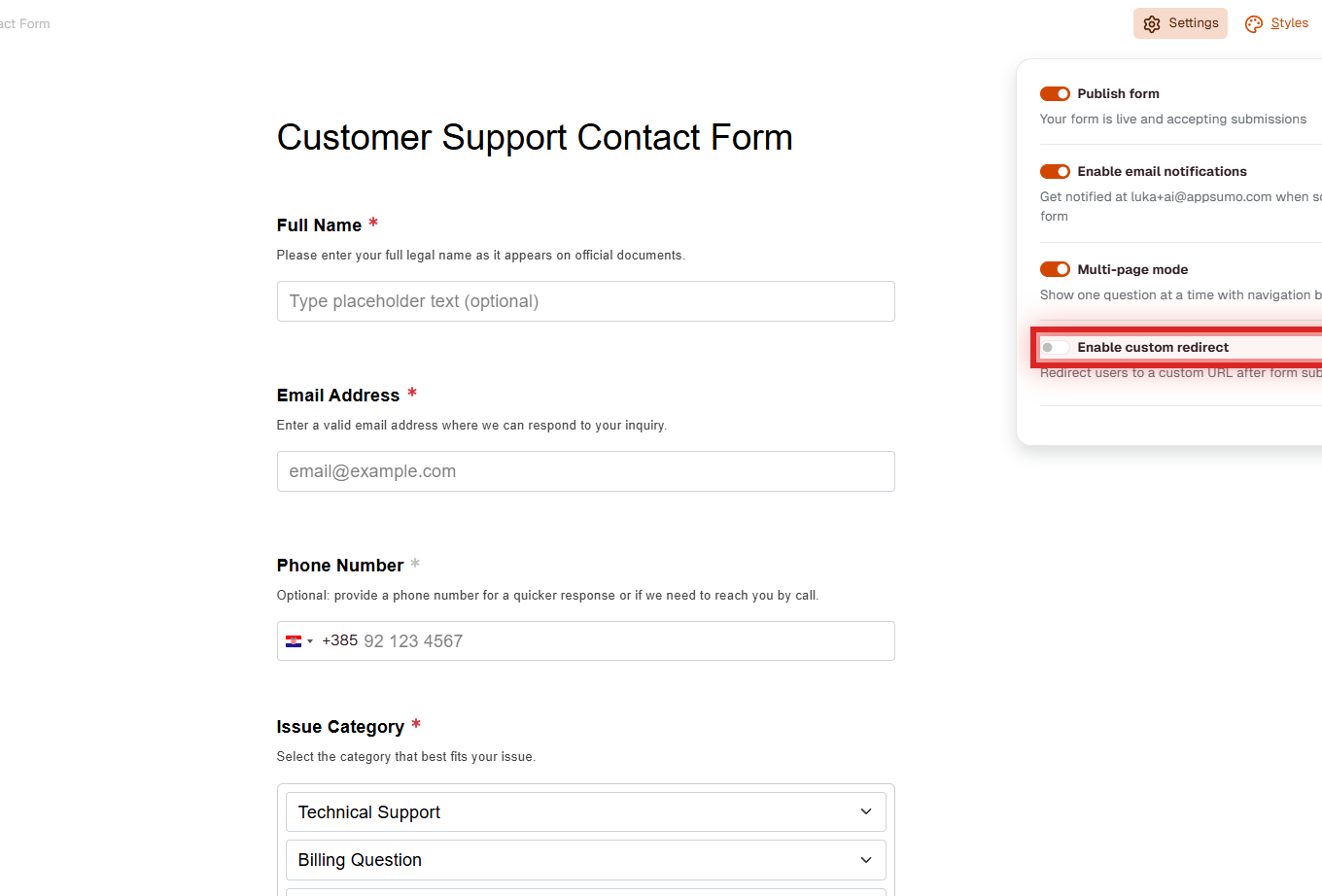
From now on, respondents go to that address right after they submit.
URL Requirements and Validation
- Protocol: must start with
http://orhttps:// - Format: must be a complete, valid URL
- Length: up to 2,048 characters
Valid: https://example.com/thank-you, https://yoursite.com/download?product=abc
Not valid: example.com/thank-you and www.example.com (no protocol), ftp://example.com (wrong protocol)
What happens after submission?
- The respondent submits the form.
- FormRobin saves the submission.
- The browser goes to your redirect address. When the form is embedded on a website, the whole page goes to the address, not only the form.
The redirect replaces FormRobin's thank-you message. Without a redirect, respondents see Thank you for your submission! and "Your form has been submitted successfully."
Using Redirects with Tracking
You can add parameters to the redirect address, for example https://example.com/thanks?utm_source=formrobin&utm_medium=form. They are sent unchanged every time; your page can read them for analytics. To see where submissions came from on FormRobin's side, use source tracking.
Testing Your Redirect
- Save the form with the redirect turned on.
- Open the live form with the View icon on its row on the Forms page.
- Fill it in and submit.
- Check that you land on your address, and that the submission appears on the form's Sessions page.
The editor's Preview does not save submissions, so test on the live form.
Limitations
- Individual Plan only: on the Free Plan, the Settings panel shows an upgrade message instead of the redirect option
- One address per form: every submission of a form goes to the same address
- Protocol required: the address must include
http://orhttps://
Troubleshooting
I don't see Enable custom redirect
- On the Free Plan, the Settings panel shows "Upgrade to the Individual Plan to enable custom redirects" instead. Custom redirects need the Individual Plan (see Understanding FormRobin Plans).
"The redirect URL must be a valid URL." or "must start with http:// or https://"
- Enter the complete address including the protocol, for example
https://example.com/thank-yourather thanexample.com/thank-you, then click Save again.
Respondents see the thank-you message instead of being redirected
- Check that Enable custom redirect is on and the address is filled in, then click Save.
- Test on the live form, not in Preview (open it with the View icon; see Publishing and Sharing Your Form).
Still stuck? Contact support at support@formrobin.com with the form link and the redirect address you entered.
Frequently Asked Questions
Can I redirect to different addresses based on answers?
No. Each form has one redirect address for all submissions. Your page can still show different content based on parameters you add to the address.
Is the submission saved if my redirect page is down?
Yes. FormRobin saves the submission first and only then sends the respondent to your address.
Does the redirect work for embedded forms?
Yes. The whole page goes to your address, not only the embedded form.
How do I remove a redirect?
Open Settings in the form editor, turn off Enable custom redirect, and click Save. Respondents see FormRobin's thank-you message again.