
How to Publish and Share Your Form Link or Embed Code
New FormRobin forms are published automatically. To share one, open Forms, click the form's Share icon and copy its link or embed code.
Prerequisites
- Account: logged in to FormRobin (new to FormRobin? See Getting Started with FormRobin)
- Form: a form with at least one question (see Creating Your First Form Manually)
- Plan: publishing and sharing are available on both plans, Free Plan and Individual Plan
How do I publish a form?
Forms are published as soon as you create them, so they accept responses right away. You can unpublish and publish a form again at any time.
| Published | Unpublished | |
|---|---|---|
| Link and embeds | Open the form | Show "Page Not Found" |
| New responses | Accepted | Not accepted |
| Share and View icons | Shown on the form's row | Hidden |
| Existing submissions | On the Sessions page | Stay on the Sessions page |
Managing the Publish Toggle
- Click Forms in the top navigation.
- Find the form you want to manage.
- Use the toggle on the form's row: it reads Published when the form is live and Unpublished when it is not.
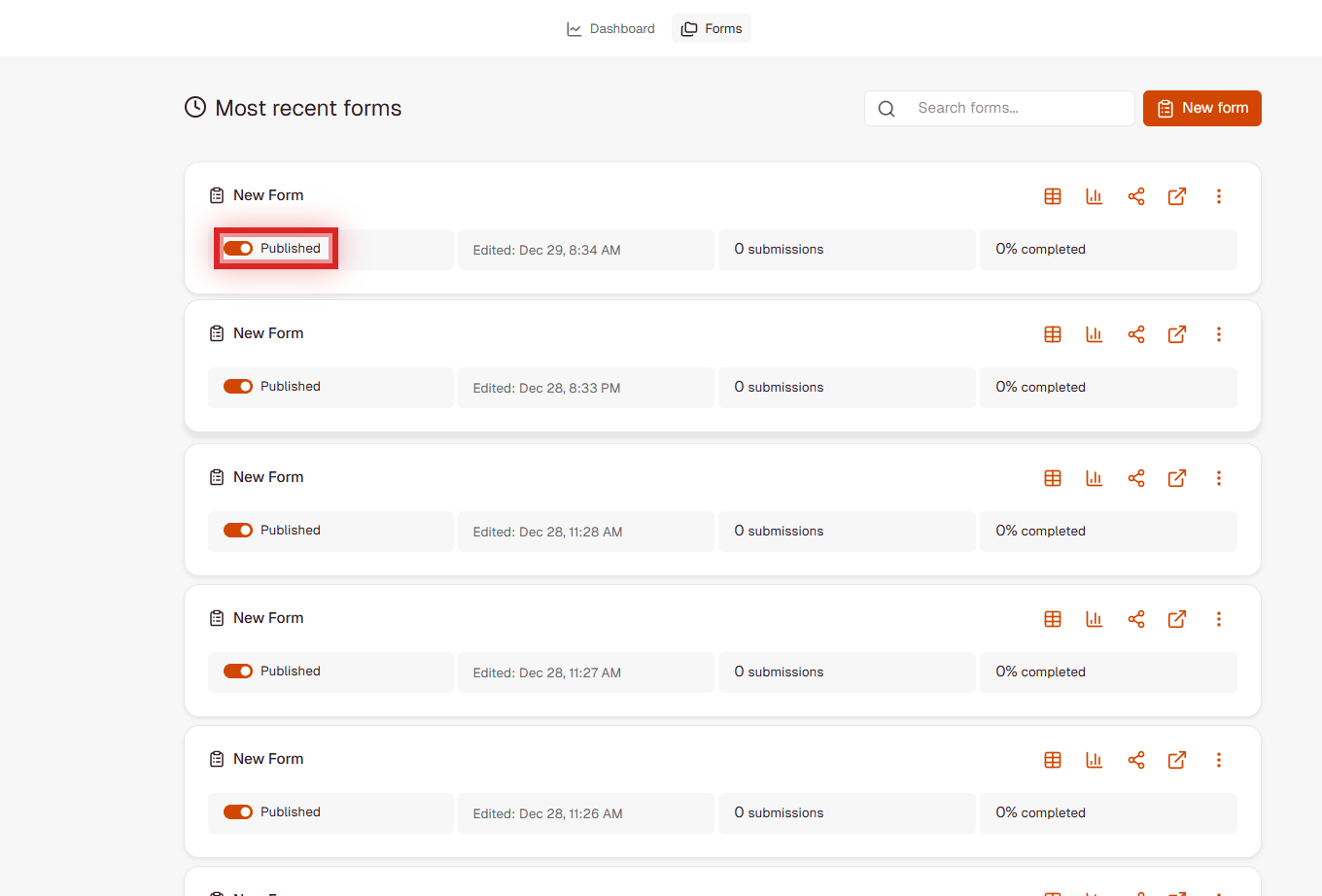
When a form is published:
- anyone with its link can open and submit it
- its Share and View icons appear on the form's row
- submissions are saved and email notifications are sent, if enabled
Unpublishing a Form
- Turn the toggle to Unpublished to stop accepting responses.
- The form's link and embeds then show "Page Not Found".
- Existing submissions stay on the form's Sessions page.
- Publish it again at any time: the link and embed code stay the same.
How do I share a form?
All sharing options are in the form's Share window.
Opening the Share Window
- On the Forms page, make sure the form is Published.
- Click the Share icon on the form's row.
- Choose a tab: Share via link or Embed on website.
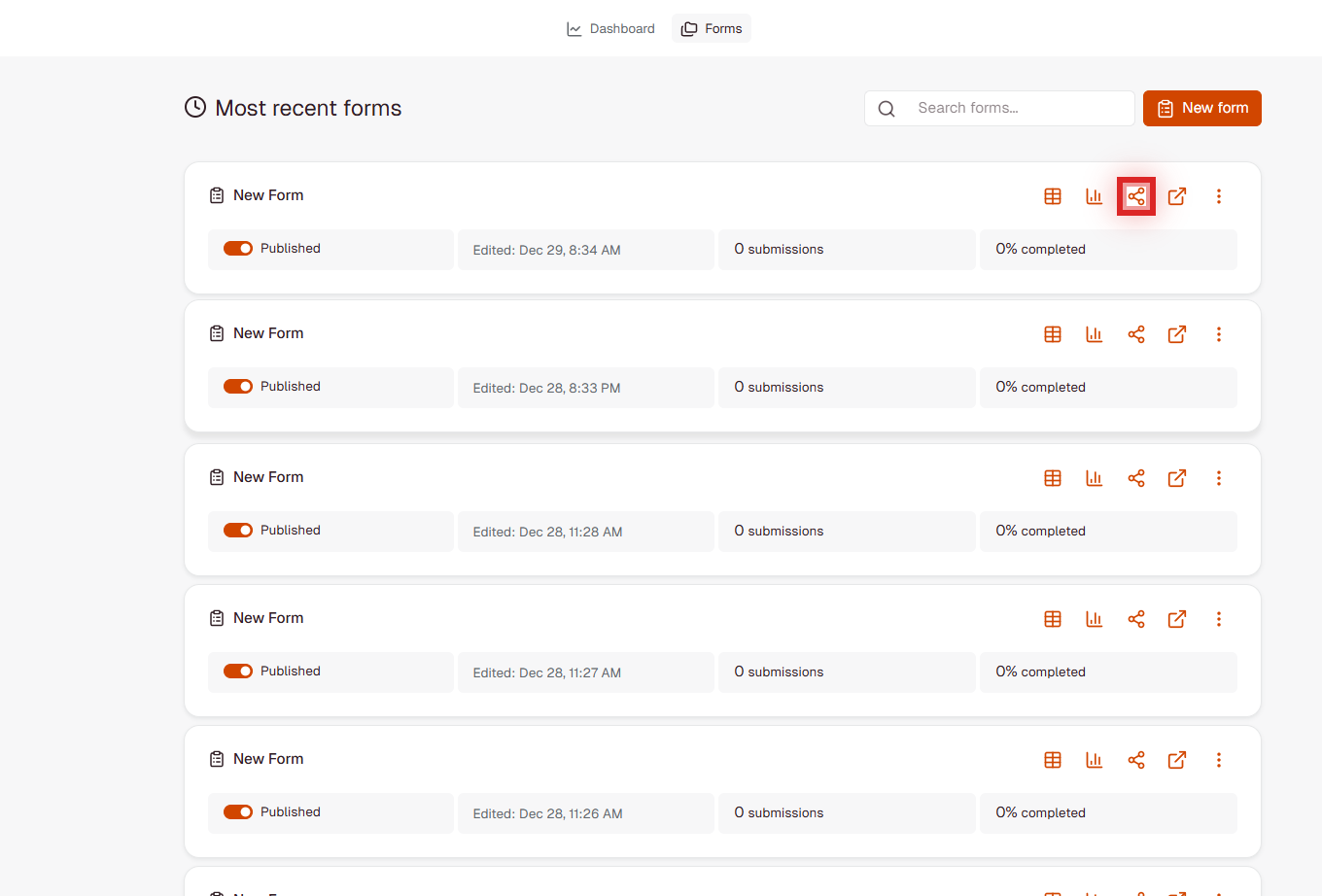
Share via Link
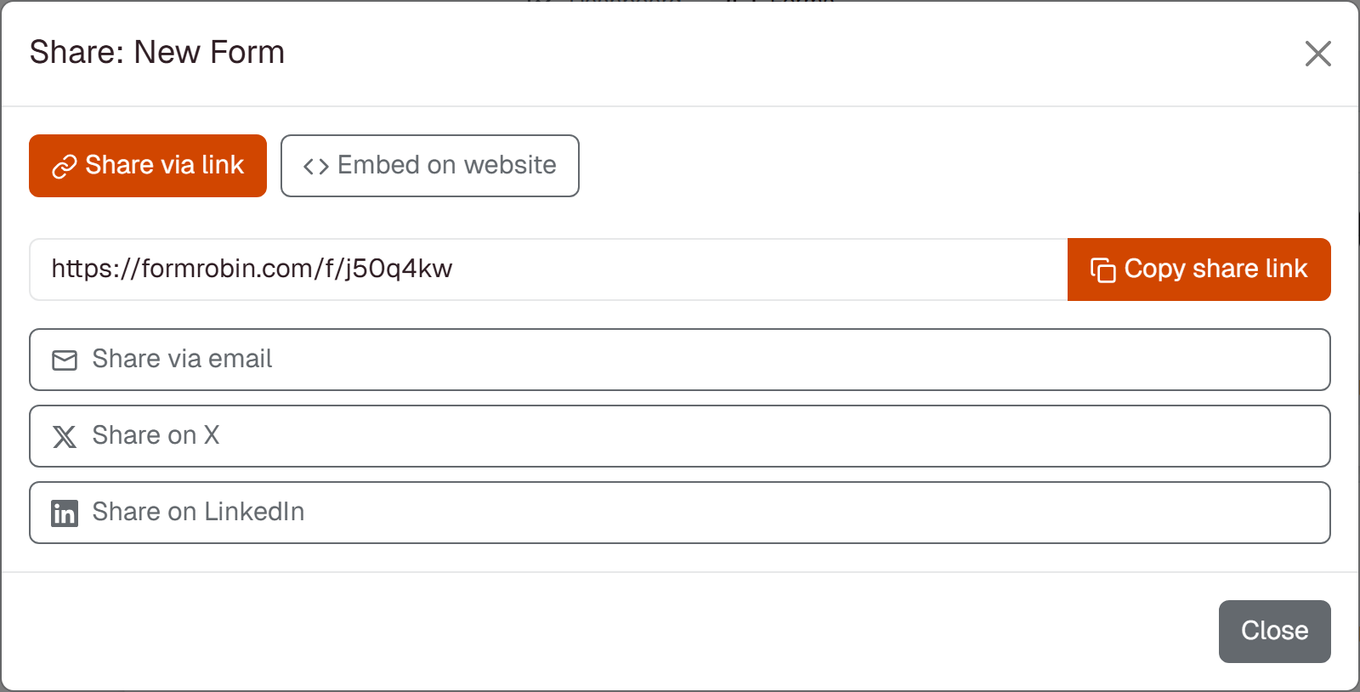
The tab shows the form's link (https://formrobin.com/f/ followed by the form's code) and these options:
- Copy share link - copies the link; a "Copied to clipboard!" message confirms it. Paste it into emails, documents or chats.
- Share via email - opens your email app with the subject "Check out this form: " plus the form name and the link in the message. Add recipients and send.
- Share on X - opens an X (Twitter) post with "Check out this form: ", the form name and the link, ready to edit.
- Share on LinkedIn - opens LinkedIn's share window with your form's link; add your own text.
Best for: email campaigns, social media posts, direct messages and email signatures.
Embed on Your Website
- In the Share window, click the Embed on website tab.
- Click Copy Code to copy the code in the Embed Code box.
- Paste it into your website's HTML where the form should appear.
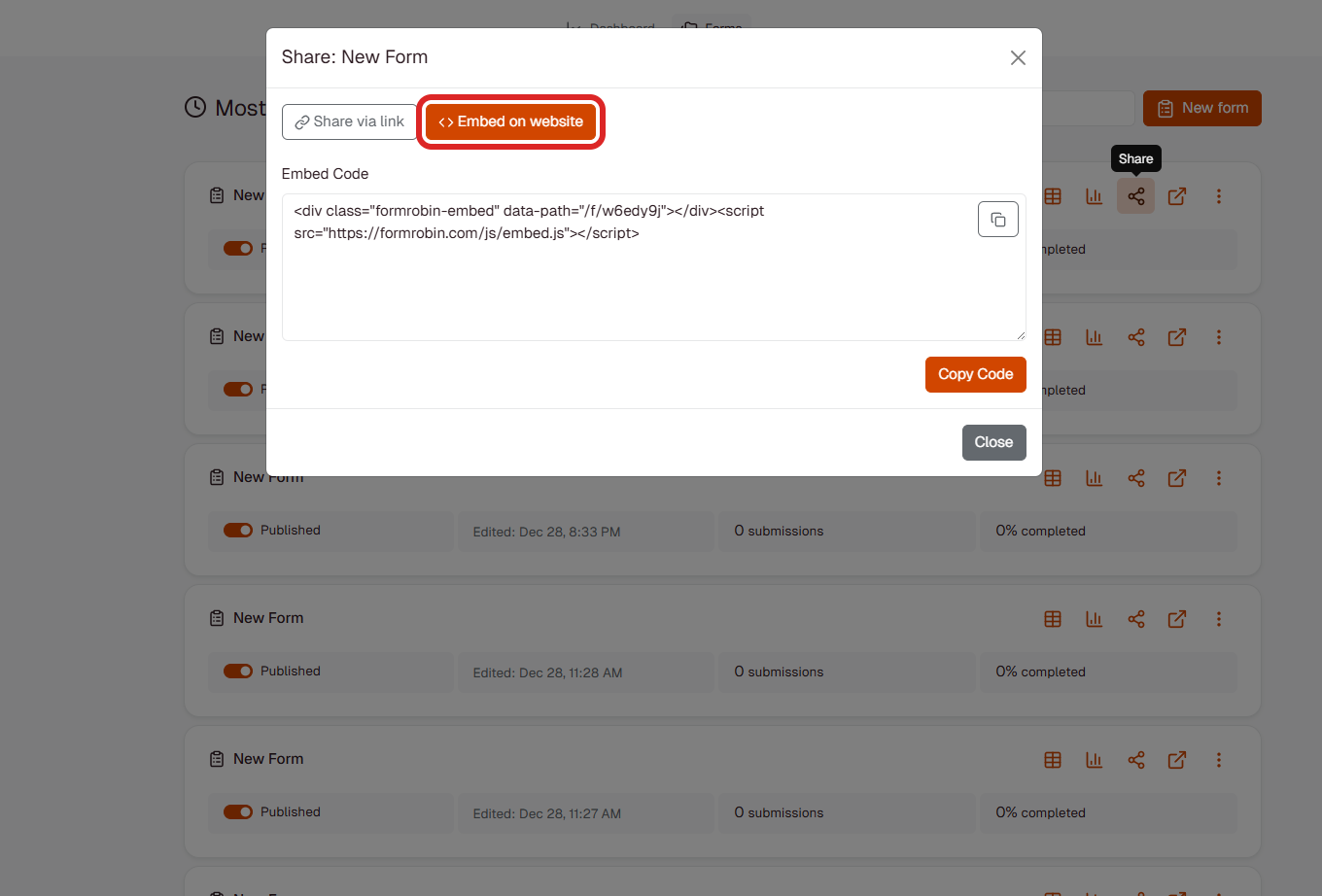
The embed code looks like this:
<div class="formrobin-embed" data-path="/f/your-form-slug"></div>
<script src="https://formrobin.com/js/embed.js"></script>
Paste both lines. The script shows your form in place of the <div> and sizes it automatically. Platform-specific steps: Embedding Forms on Your Website.
Best for: contact pages, landing pages, blog posts and resource pages.
What Happens After Publishing
- The form is open at its link and wherever it is embedded, on any website.
- Submissions appear on the form's Sessions page.
- Email notifications are sent for each submission, if enabled.
- Source details (such as UTM parameters and the referring page) are recorded with each submission; viewing them in the Sessions table's Source Tracking columns needs the Individual Plan.
- Custom redirects after submission need the Individual Plan (see Custom Post-Submission Redirects).
Limitations
- Unpublished forms cannot be opened or submitted.
- Form links are always on formrobin.com; custom domains are not available.
- Social sharing opens a new browser window, so your browser must allow pop-ups from FormRobin.
Troubleshooting
The form link shows "Page Not Found"
- The form is unpublished. On the Forms page, turn its toggle to Published.
- More causes: Troubleshooting: Form Not Loading.
I don't see the Share icon
- The Share and View icons appear only on published forms. Publish the form first.
The social sharing buttons do nothing
- Allow pop-ups for FormRobin in your browser's settings, then click the button again.
"Could not copy to clipboard"
- Your browser blocked the copy. Select the link (or embed code) in the box and copy it manually with Ctrl+C or Cmd+C.
Still stuck? Email support@formrobin.com with the form's link and a screenshot of what you see.
Frequently Asked Questions
Can I unpublish a form and publish it again later?
Yes. Use the toggle on the Forms page at any time. Existing submissions are kept.
Does the form link change if I unpublish and publish again?
No. The link and embed code stay the same, so existing links and embeds work again once the form is published.
Can I embed the same form on several pages?
Yes, on as many pages and websites as you like.
Can I change the social media share text?
Yes. X and LinkedIn open their own post windows, where you can edit the text before posting.