
How to Get Started with FormRobin and Build a Form
FormRobin is an AI-powered form builder with unlimited forms and responses. Sign up, click New form on the Forms page, and share your first form in minutes.
What is FormRobin?
FormRobin helps you build forms by hand or with AI: contact forms, surveys, registrations, lead forms and feedback forms. Every plan includes 13 question types, conditional logic and unlimited responses.
Key Features
- AI Form Generation - describe your form in plain English and let AI build it (2 generations a month on the Free Plan, 50 on the Individual Plan)
- Unlimited Forms & Responses - on both plans
- 13 Question Types - Short answer, Long answer, Statement, Email, URL, Multiple choice, Single choice, Checkbox, Phone, Number, Date, File upload and Image (see Form Field Types Explained)
- Conditional Logic - show or hide questions based on answers
- Analytics - form starts, submissions and conversion rate on the Dashboard, plus an Analytics page for every form
- Sharing and Embedding - share a link or embed the form on any website
- Source Tracking - see UTM parameters and traffic sources (Individual Plan)
- Meta Pixel and Webhooks - track conversions and send submissions to your own tools (Individual Plan)
Getting Started
- Sign up for a FormRobin account at formrobin.com. Your account starts with a folder called My first folder that holds example forms you can edit or copy (see Using Form Templates).
- Log in. You land on the Dashboard.
-
Click Forms in the top navigation, then New form.
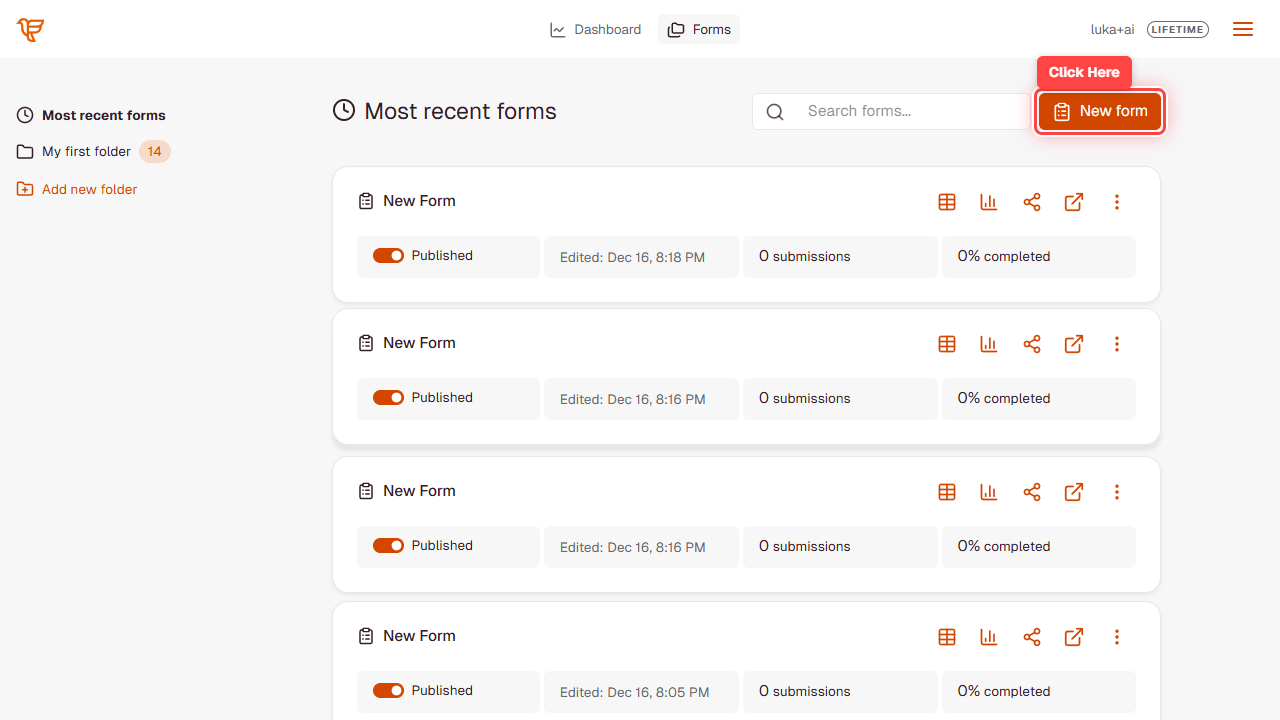
- On the Let's create your form screen, describe your form and click Generate form to have AI build it, or click Start from scratch.
-
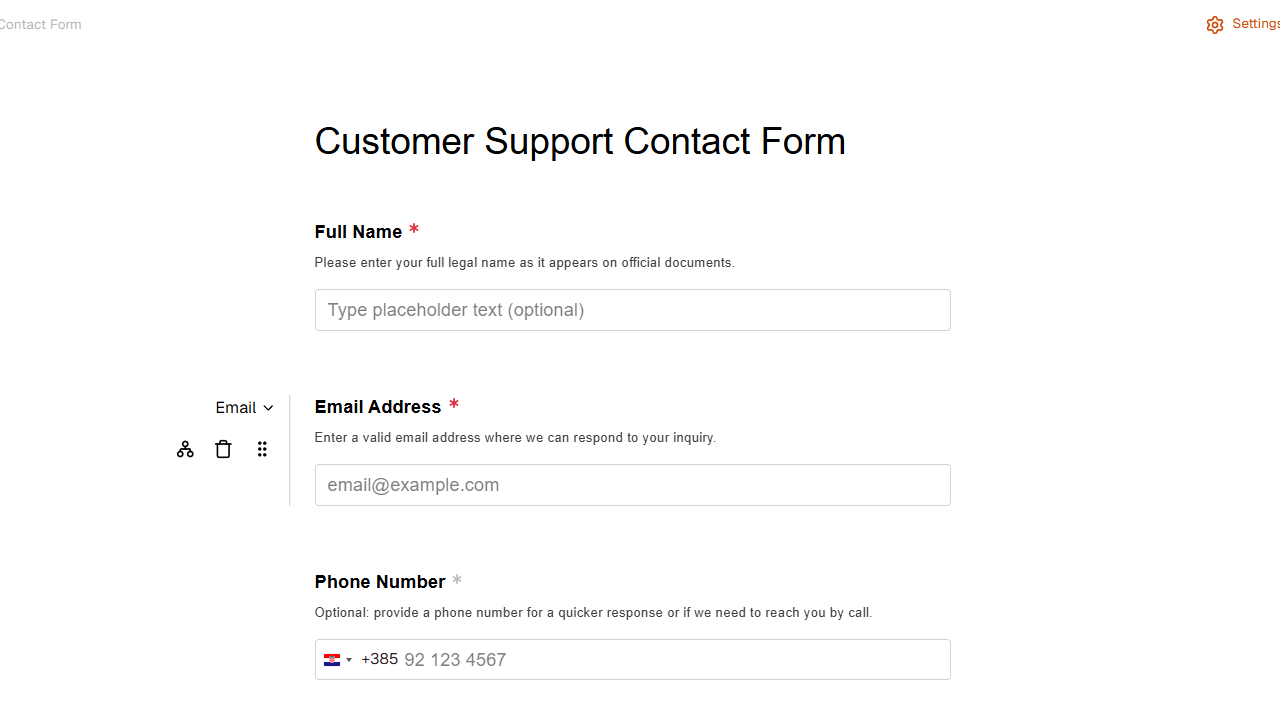
Add questions and adjust the design and settings, then click Save.
- Share your form: new forms are published as soon as they are created, so use the Share icon on the form's row to copy the link or the embed code (see Publishing and Sharing Your Form).
Navigating FormRobin
The top navigation has two main pages:
- Dashboard - totals for Total forms, Form starts, Submissions and Conversion rate, plus Recent activity and your Top forms
- Forms - all your forms, with folders in the left sidebar (Most recent forms shows every form), a Search forms... box, the New form button, and a row per form with its publish switch and action icons
The account menu in the top right holds Settings, Plan, Feedback, Help Center and Logout.
For a full tour, see Dashboard Overview and Navigation; for everything under Settings and Plan, see Account Settings Overview.
Free vs Individual Plan
Free Plan includes:
- Unlimited forms and responses
- 13 question types and conditional logic
- 2 AI generations per month
- CSV export
- 1 workspace
- Embedding on any website
Individual Plan ($19 one-time) adds:
- 50 AI generations per month
- Custom post-submission redirects
- Source tracking (UTM parameters)
- Webhooks
- Meta Pixel integration
- 3 workspaces
Next Steps
- Create your first form manually
- Generate a form from a description with AI
- Set up conditional logic for dynamic forms
- Publish and share your form
Troubleshooting
I can't see the New form button
- The button is on the Forms page (top navigation), in the top right. The Dashboard shows analytics only.
My forms are not listed
- You may be looking at one folder. Click Most recent forms in the left sidebar to see every form, or use Search forms.... More about folders: Organizing Forms with Folders.
Still stuck? Email support@formrobin.com with your account email and what you were trying to do.
Frequently Asked Questions
Do I need a credit card to start?
No. The Free Plan includes unlimited forms and responses.
How many forms can I create?
As many as you like, on both the Free Plan and the Individual Plan.
Can I upgrade later?
Yes. Open Plan from the account menu and use the upgrade banner to move to the Individual Plan ($19 one-time).
Is there a limit on responses?
No. Both plans include unlimited responses.