
How to Create a Form with AI from a Description
FormRobin's AI builds a complete form from a plain-English description. Click New form, describe your form in the box and click Generate form.
Prerequisites
- Account: logged in to FormRobin
- Plan: Free Plan (2 AI generations per month) or Individual Plan (50 AI generations per month) — see AI Form Generation Limits and Usage
How does AI form generation work?
FormRobin sends your description to an OpenAI model, which picks a form title and the questions to ask. For each question it chooses the most suitable question type, writes the label and a short description, sets whether an answer is required, and adds options for choice questions. The new form opens in the editor, ready to review.
How to Generate a Form with AI
-
On the Forms page, click New form.
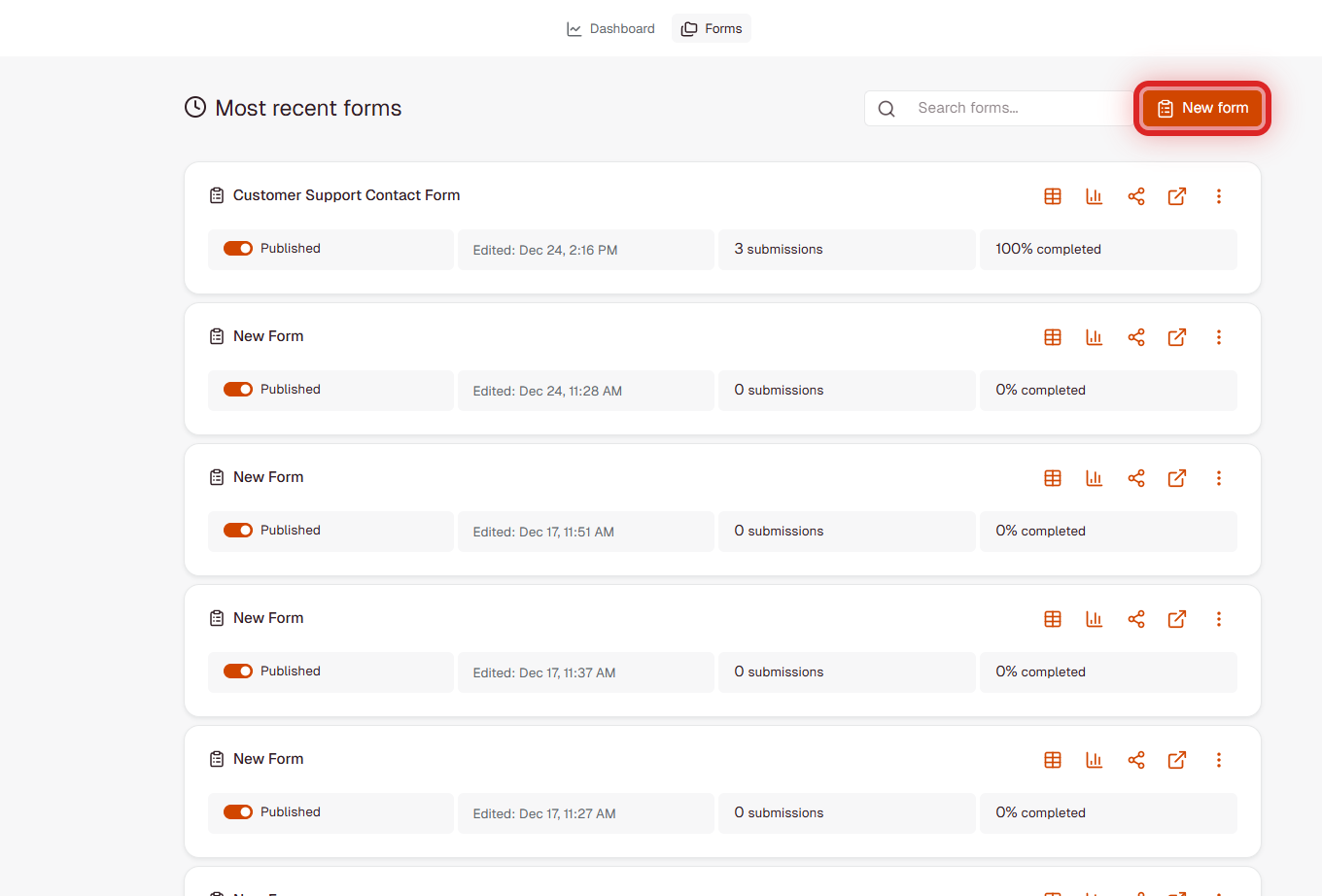
- FormRobin creates a new form in the current folder (or your first folder) and opens it on the Let's create your form screen, with the description box ready.
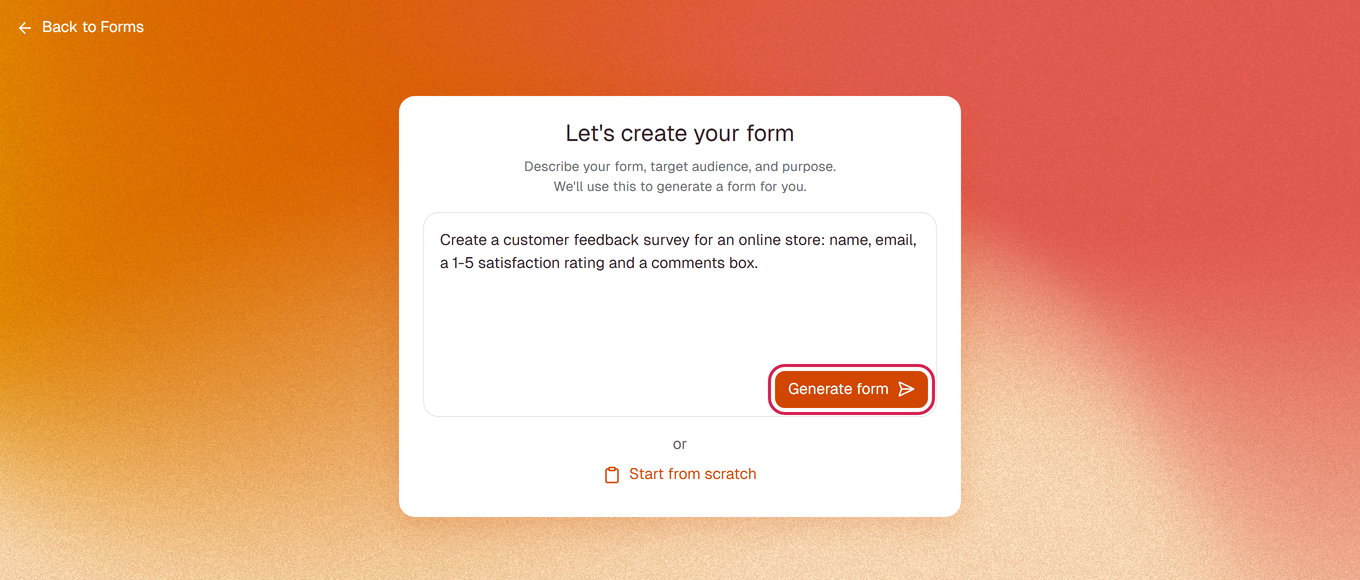
- Describe your form, its audience and its purpose (up to 1,000 characters).
-
Click Generate form and wait a few seconds while the form is built.
- Review the questions, change anything you like, and click Save.
Tip: To build the form yourself instead, click Start from scratch.
Writing Effective AI Prompts
Clear, detailed descriptions give better forms:
Good example: "Create a customer feedback survey with name, email, a 1-5 satisfaction score, product quality, customer service, comments, and permission to contact them again."
Another example: "Build a job application form with applicant name, email, phone, resume upload, cover letter, years of experience, desired salary range, and availability date."
Tips for best results:
- Name the question types you want (text, email, number, file upload, dropdown…)
- Say which questions are required and which are optional
- Explain the form's purpose and audience
- List exactly the information you want to collect
Which question types can the AI create?
The AI can create these question types (see Form Field Types Explained):
- Short answer - names, titles, brief answers
- Long answer - comments, descriptions, paragraphs
- Email - checked for a valid email address when the form is submitted
- Multiple choice - options shown as a list
- Single choice - pick one option from a dropdown list
- Phone - phone numbers, with the country preselected from the respondent's location
- Number - numeric answers, checked on submit
- URL - website addresses, checked on submit
- File upload - documents and images
- Date - date picker
- Checkbox - a single tick box, for example a consent
The names above are the ones shown in the editor's question-type menu. Statement and Image blocks are not generated; add them yourself afterwards.
Customizing AI-Generated Forms
After the AI creates your form you can edit it like any other form:
- Edit labels and descriptions
- Add, delete or reorder questions
- Change question types
- Add conditional logic rules
- Change the design and form settings
AI Generation Limits
- Free Plan: 2 AI generations per month
- Individual Plan: 50 AI generations per month
- Reset: the count starts again on the 1st of each month (00:00 UTC)
- Speed limit: up to 5 generations per minute
- Prompt length: up to 1,000 characters
Only successful generations count. If a generation fails, it does not use one of your generations.
What happens during generation?
- The AI reads your description and chooses a form title
- It creates the questions in a logical order, with labels, descriptions, required settings and options
- The form is saved with the new questions and opens in the editor
- One generation is deducted from your monthly allowance
Troubleshooting
"You've reached your AI form generation limit for the month"
- You have used all generations for this month (2 on the Free Plan, 50 on the Individual Plan). They reset on the 1st of next month (see AI Form Generation Limits and Usage).
- Click Start from scratch to build the form manually, or upgrade to the Individual Plan.
"Sorry, something went wrong! Please try again."
- If you generated several forms in quick succession, wait a minute: you can generate up to 5 forms per minute.
- Try again; a failed generation does not use one of your generations.
The prompt is rejected as too long
- Shorten your description to 1,000 characters or less.
The AI chose the wrong question types
- Change the type of any question in the editor (see Form Field Types Explained), or describe the types you want more precisely in your next prompt.
Still stuck? Contact support at support@formrobin.com with the prompt you used and the message you saw.
Frequently Asked Questions
Does AI generation count against my form limit?
No. Both plans include unlimited forms. AI limits only count how many forms the AI builds each month.
Can I try a different prompt if I don't like the result?
Yes. Create another new form, enter a new description and click Generate form; each successful generation uses one of your monthly generations. Editing the generated form is often quicker.
When does my AI allowance reset?
On the 1st day of each month at 00:00 UTC.
Where can I see how many generations I have left?
Open the account menu (top right), click Plan, and check AI Generations under Usage and limits.