
How to Use Form Templates to Build Forms Faster
Every new FormRobin account starts with 8 ready-made template forms in My first folder. Open one from Forms, click Edit, and adapt it.
What Are Form Templates?
Templates are complete forms for common jobs — contact, registration, feedback and more — with the questions, question types and required answers already set. They are normal forms in your account: edit, duplicate, move or delete them like any other form.
| Template | Best for |
|---|---|
| Contact Us | Website contact and support pages |
| Event Registration | Conferences, workshops, webinars |
| Customer Feedback | Post-purchase and service feedback |
| Job Application | Job postings and career pages |
| Newsletter Signup | Blog and newsletter subscriptions |
| Lead Generation | Demo and pricing requests |
| Customer Survey | User research |
| Product Order Request | Custom and bulk orders |
Prerequisites
- Plan: both plans, Free Plan and Individual Plan
- Account: the templates are added automatically when you sign up
Where are my template forms?
When you create your account, FormRobin adds the 8 templates to My first folder. They are already published, so each has a working link.
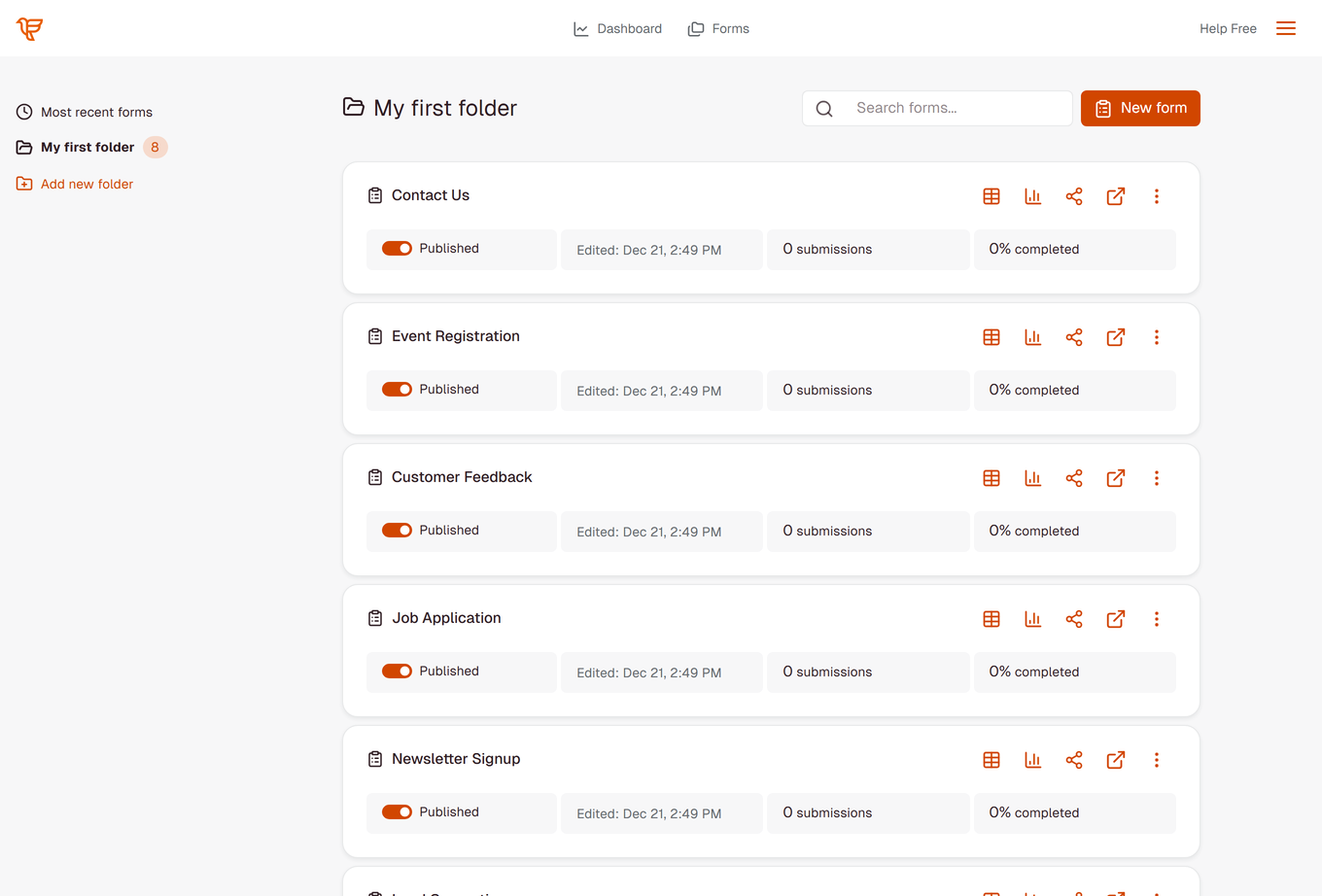
- Click Forms in the top navigation.
- Open My first folder.
- Find the template you want, for example Contact Us.
If you have renamed, moved or deleted a template, it stays that way; templates are not added again later.
Which templates are available?
1. Contact Us
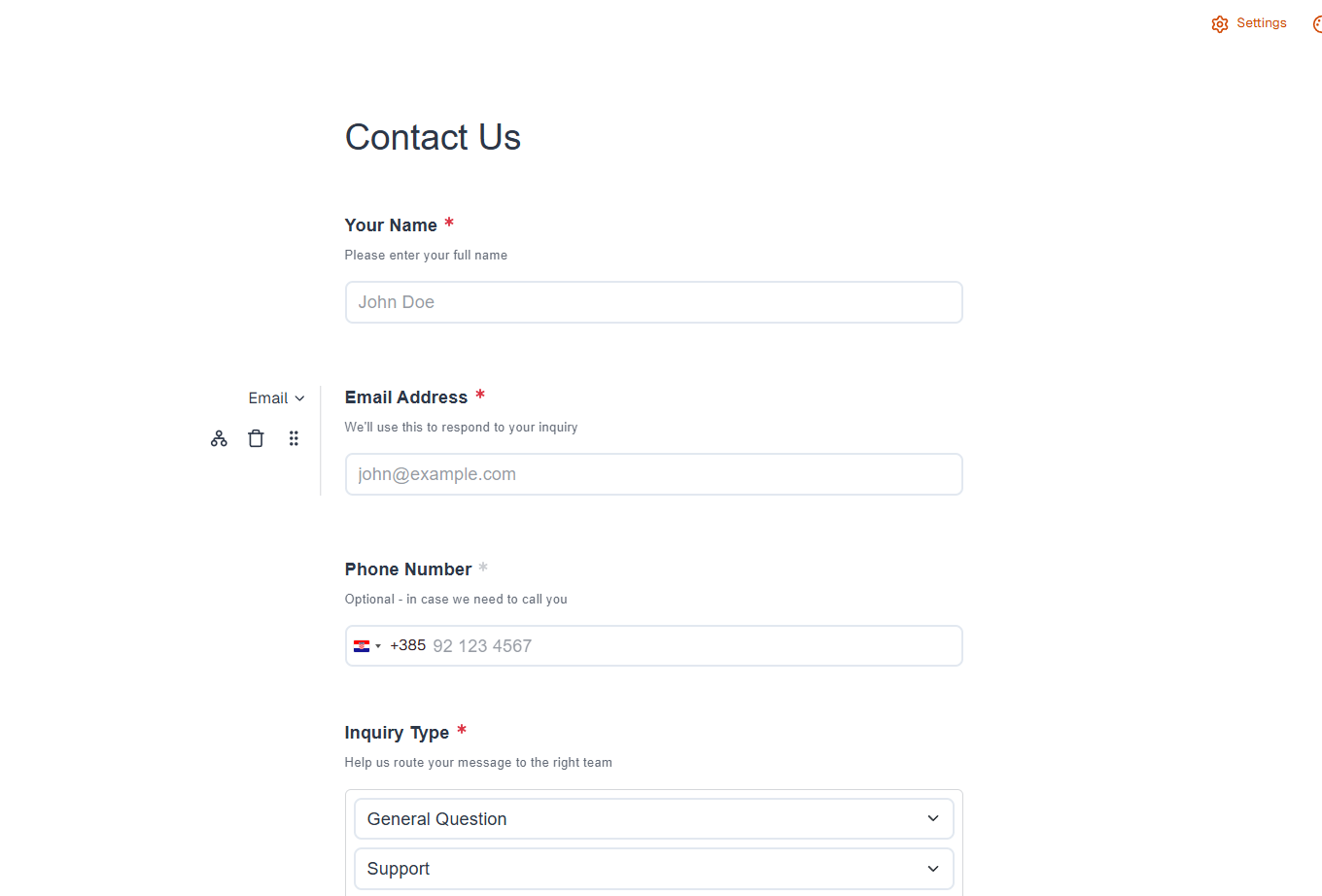
Your Name, Email Address, Phone Number (optional), Inquiry Type (single choice), Your Message. Best for: website contact and support pages.
2. Event Registration
Full Name, Email Address, Phone Number, Company/Organization, Job Title, Number of Attendees, Special Requirements. Best for: conferences, workshops, webinars.
3. Customer Feedback
Your Name and Email Address (optional), "How satisfied are you with our product/service?", "How likely are you to recommend us to a friend?", What did you like most?, What could we improve?. Best for: post-purchase and service feedback.
4. Job Application
Full Name, Email Address, Phone Number, Position Applying For, LinkedIn Profile, Portfolio/Website, Resume/CV (file upload), Cover Letter (file upload, optional), Why do you want to work with us?. Best for: job postings and career pages.
5. Newsletter Signup
First Name, Last Name, Email Address, What topics interest you?, and a consent checkbox "I agree to receive marketing emails". Best for: blog and newsletter subscriptions.
6. Lead Generation
Full Name, Work Email, Phone Number, Company Name, Job Title, Company Size, primary interest, Tell us about your needs. Best for: demo and pricing requests.
7. Customer Survey
Age Range, usage frequency, most-used features, customer service rating, feature requests, Email (optional). Best for: user research.
8. Product Order Request
Full Name, Email Address, Phone Number, Product, Quantity, Shipping Address, Special Instructions. Best for: custom and bulk orders.
How do I use a template?
-
On the Forms page, open My first folder and find the template.
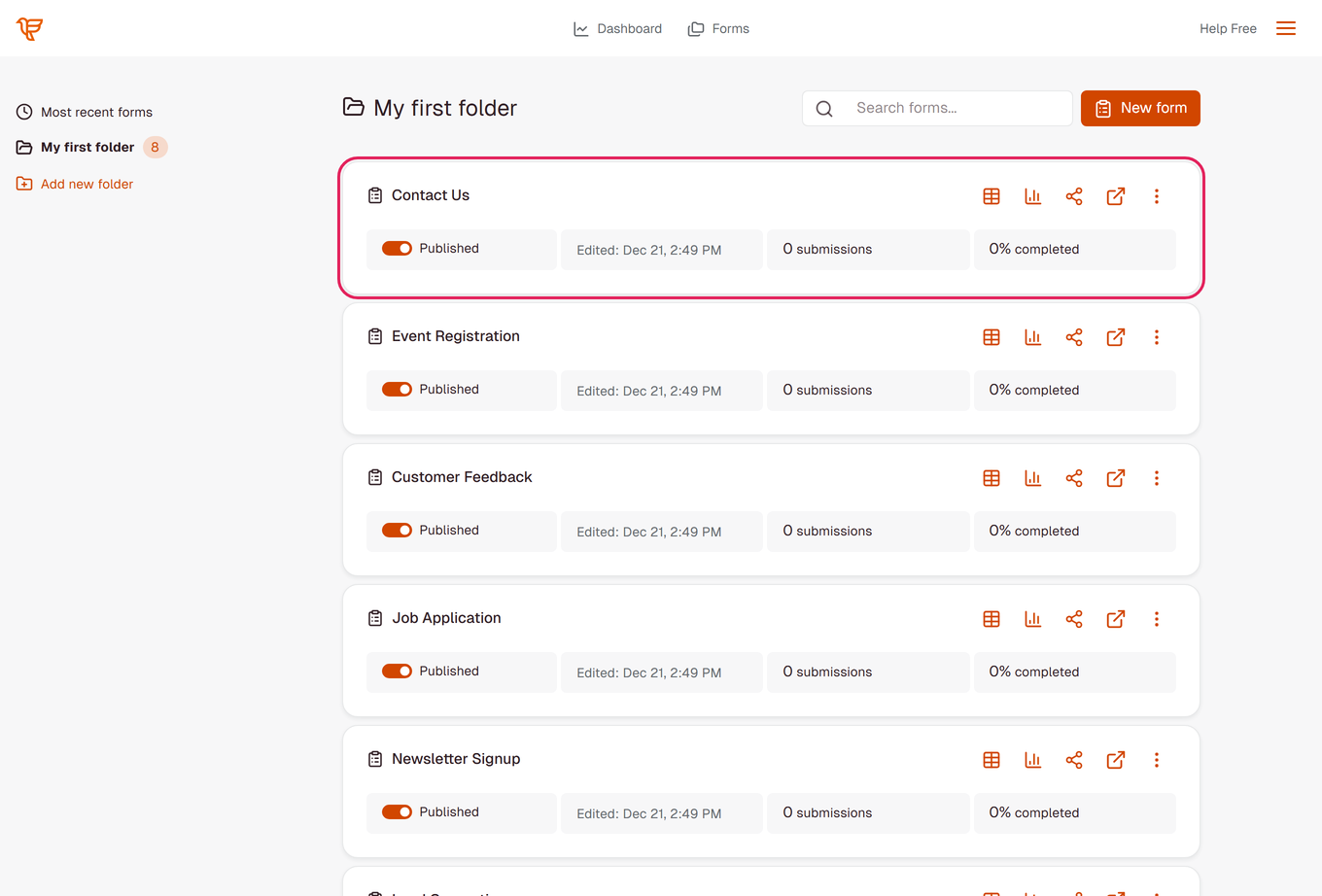
- Click the ⋮ (More) menu on its row and choose Edit (clicking the row itself opens its responses).
- Change the questions, design and settings you need.
- Click Save (or press Ctrl/Cmd+S).
Tip: To keep the original template, first choose Duplicate from its ⋮ menu and edit the copy (see Duplicating Forms).
How do I customize a template?
Edit Existing Questions
- Click a question's text or description to change it
- Change the placeholder text of Short answer, Long answer and Email questions
- Click the asterisk next to a question to make it required or optional
Add or Remove Questions
- Click + (Add a new question) and pick one of the 13 question types
- Delete a question with the trash icon (Delete question)
- Drag a question by its handle to reorder
Customize Styling
- Click Styles at the top of the editor to change colors, fonts and buttons (see Form Styling and Customization)
Configure Form Settings
- Click the submit button text to change it (for example "Send Message")
- Click Settings to switch Enable email notifications, Multi-page mode or Publish form, or to add a custom redirect (Individual Plan)
- Connect integrations such as SendFox or Google Sheets under your account Settings → Integrations
Should I use a template or a blank form?
Use a Template When:
- Your form matches a common use (contact, registration, feedback, orders)
- You want a quick start with sensible questions and required settings
Use a Blank Form When:
- Your form is specialized and no template is close
- You prefer to build every question yourself
To start blank, click New form on the Forms page and choose Start from scratch.
Template Customization Best Practices
- Review every question - remove the ones you do not need
- Use your own wording - match your brand's voice
- Require only essentials - fewer required questions, more completions
- Test before sharing - submit a response on the live form
Working with Template Forms
- Yours to keep - template forms belong to your account
- Independent - changing one template does not affect the others
- Already published - each has a live link from the start; switch Publish form off in Settings if you do not want it online
- Editable any time - even after it receives responses
Troubleshooting
I don't see any template forms
- Look in My first folder on the Forms page.
- Templates are added once, when the account is created; renamed, moved or deleted templates are not restored. Start from a blank form with New form instead (see Creating Your First Form Manually).
Clicking a template opens its responses, not the editor
- Clicking a form's row opens its Sessions page (see Viewing and Managing Form Responses). To open the editor, click the ⋮ (More) menu on the row and choose Edit.
The template has questions I don't need
- Delete them with the trash icon on each question, then click Save.
Still stuck? Email support@formrobin.com with the template's name and what you expected to see.
Frequently Asked Questions
Are templates available on the Free Plan?
Yes. Every new account gets the same 8 templates, on both plans.
What is the difference between a template form and a regular form?
None. A template form is a regular form that was created for you; it works exactly like forms you build yourself.
Can I create my own templates?
There is no separate template feature, but you can keep a master form and use Duplicate to reuse it.
Do templates include integrations?
No. Templates contain questions and design only. Connect integrations such as SendFox or Google Sheets yourself.