
How to View, Search and Manage Form Responses
Every submission to a FormRobin form appears on the form's Sessions page. Open Forms, click the form (or its Sessions icon) to view, search and manage responses.
Prerequisites
- Account: logged in to FormRobin
- Form: a published form that has received at least one submission
How do I open form responses?
-
Click Forms in the top navigation and find your form.
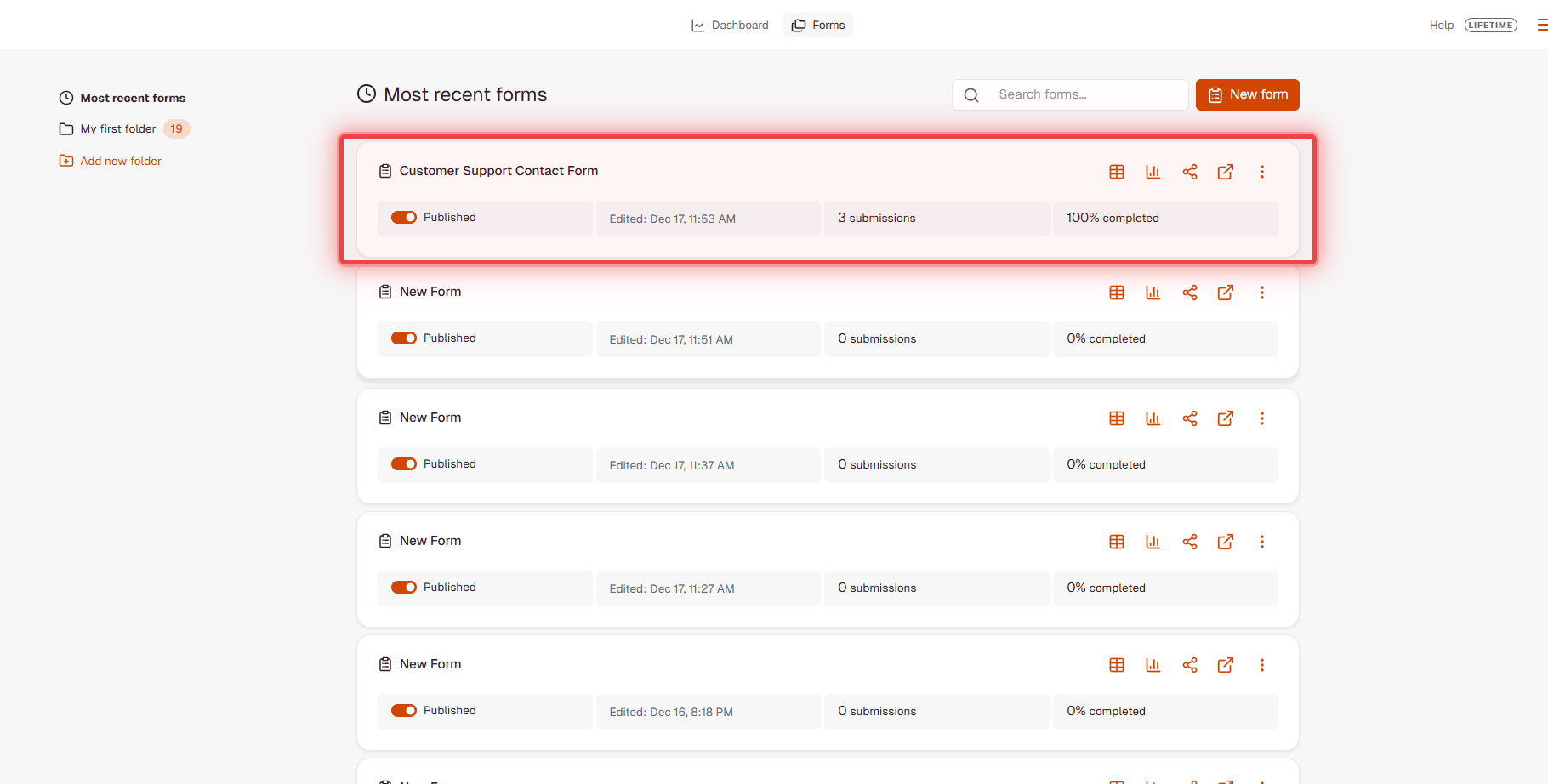
- Click the form card, or the Sessions icon on its row.
-
The Sessions page lists every submission, newest first.
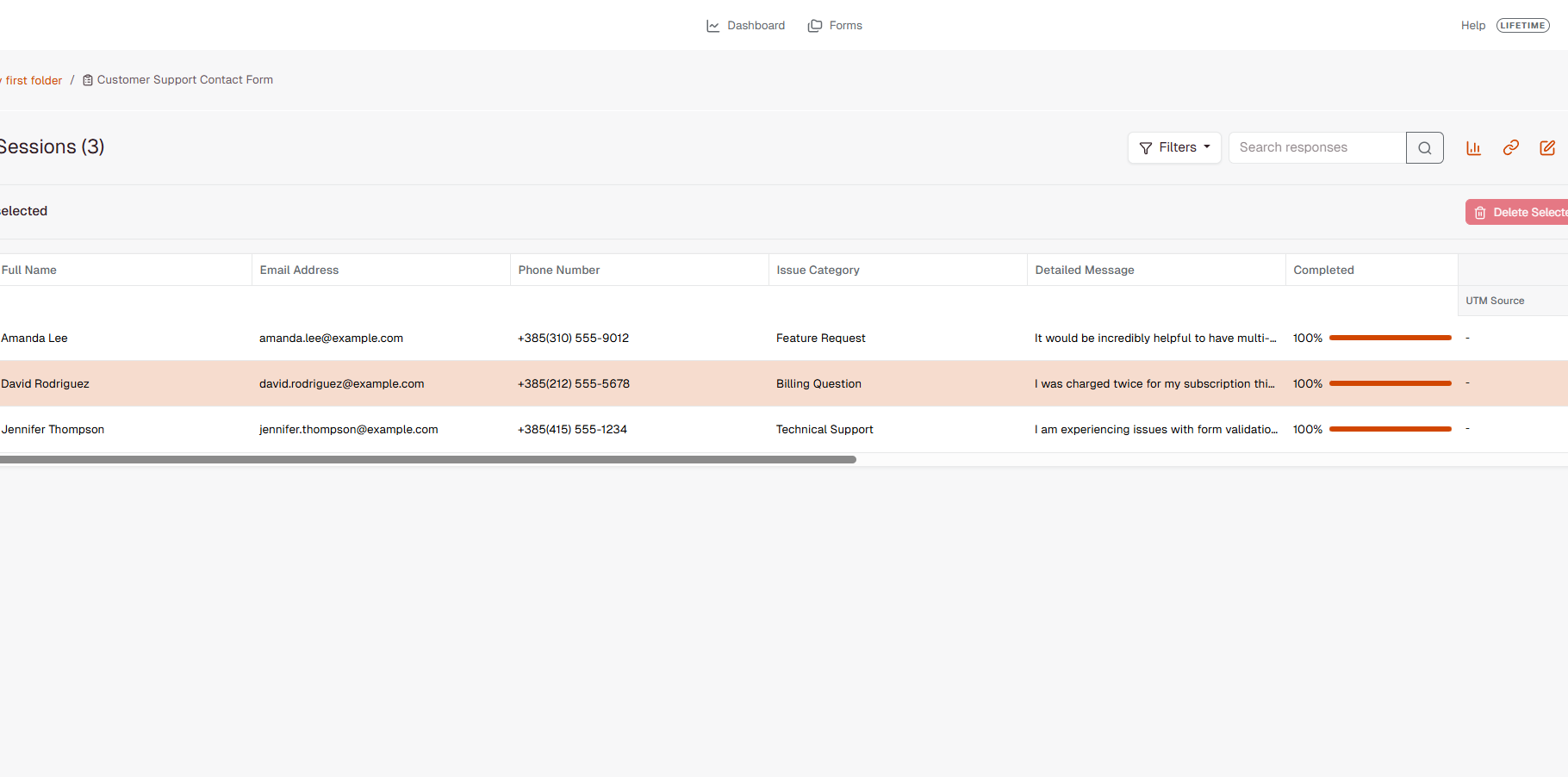
- Click any row to open its Submission details.
What does the Sessions table show?
The heading shows the number of submissions, for example Sessions (42). The table has:
- Checkboxes - select submissions to delete them
- One column per question - the answers, using your question labels as column headers
- Completed - the percentage of the form's questions that were answered, with a progress bar
- Source Tracking - UTM Source, UTM Medium, UTM Campaign, UTM Term, UTM Content, Referrer URL, Landing Page, Device, Browser, Browser Ver., OS and IP Address (Individual Plan)

The table shows 30 submissions per page; use the page links below it to see older ones.
What does the completion status mean?
Each row in the table is a submitted form. The Completed column shows how many of the form's questions have an answer:
- 100% - every question was answered
- Below 100% - the respondent submitted the form but left some optional questions empty
How do I view a single response?
- Click a row in the Sessions table.
- The Submission details window shows Submitted (date and time), Session ID, Completion, and under Form responses every question with its full answer.
- On both plans it also shows the submission's UTM Source, UTM Medium and Device (N/A when a value was not recorded). The full set of Source Tracking columns in the table is part of the Individual Plan.
- Click Close, or click outside the window, to return to the table.

Source Tracking Data (Individual Plan)
FormRobin records where every submission came from. On the Individual Plan, the Sessions table shows it in the Source Tracking columns:
- UTM Source, UTM Medium, UTM Campaign, UTM Term, UTM Content - from the form link's UTM parameters
- Referrer URL - the page the visitor came from
- Landing Page - the URL the form was opened with
- Device, Browser, Browser Ver., OS - the respondent's device and software
- IP Address - the respondent's IP address
On the Free Plan these columns are blurred and the page offers an upgrade; the data is still recorded, so it appears as soon as you upgrade. See Using Source Tracking and UTM Parameters.
How do I search responses?
- Type a word or phrase in Search responses at the top of the Sessions page.
- Press Enter or click the search button.
- The table shows only submissions with an answer containing your text. Click Clear search to see all submissions again.

Filtering Responses (Individual Plan)
Click Filters to narrow the table by UTM Source, UTM Medium, Campaign or Device Type. Each group lists the values your submissions actually have; choose one value per group and combine groups as needed. The active filters appear above the table; click Clear all filters to remove them.
Managing Responses
Deleting a Submission
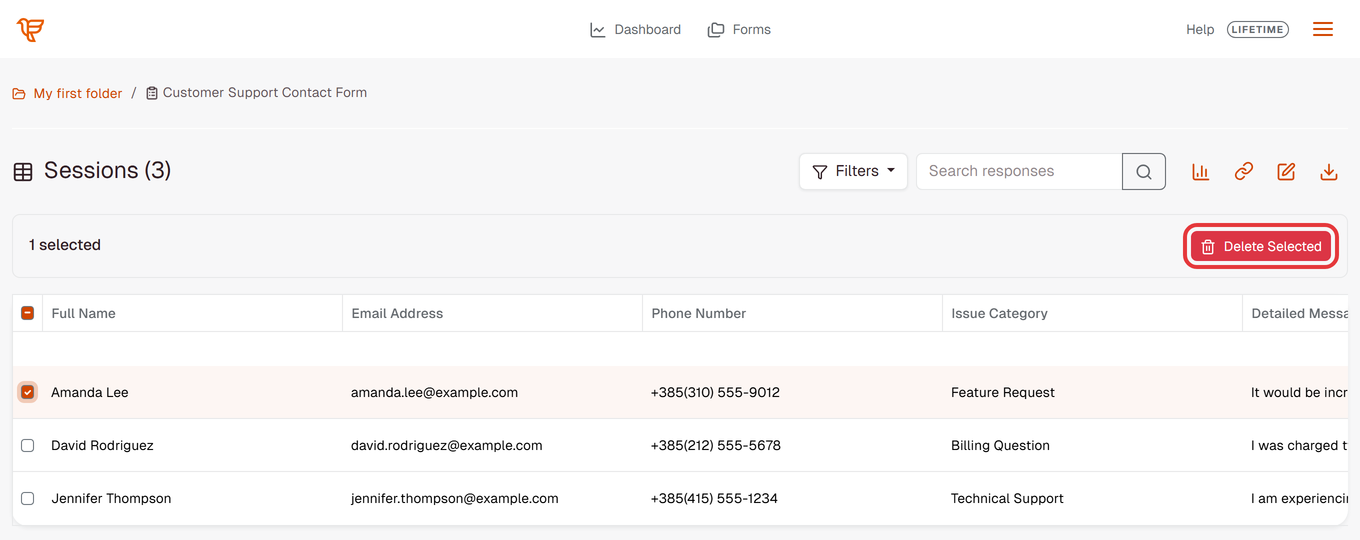
- Tick the checkbox at the start of the submission's row.
- Click Delete Selected above the table.
- Confirm when asked. The submission is permanently deleted.
Deleting Several Submissions
- Tick the checkbox of each submission, or tick the checkbox in the table header to select every submission on the current page.
- The bar above the table shows how many are selected, and Delete Selected becomes clickable.
- Click Delete Selected and confirm: "Are you sure you want to delete the selected sessions? This action cannot be undone."
Deleted submissions cannot be recovered. Export a CSV first if you want a copy. To delete a whole form instead, see Deleting and Restoring Forms.
Downloading File Uploads
For file upload questions, the table cell shows each uploaded file's name and size as a link. Click it to download the file.
What Happens After Submission
- The submission is added to the Sessions page (reload the page to see new ones)
- An email notification is sent if notifications are on (see Setting Up Email Notifications)
- Its source tracking data is recorded
- It becomes searchable and is included in the CSV export
Limitations
- Source tracking view and filters: Individual Plan only (the data is recorded on both plans)
- New submissions: reload the page to see them
- Editing: submissions cannot be edited, only viewed or deleted
- Select all: selects the submissions on the current page
Troubleshooting
No responses are showing
- Check that the form is published (see Publishing and Sharing Your Form) and that people have submitted it.
- Reload the page, and click Clear search or Clear all filters if a search or filter is active.
I can't see source tracking data
- The Source Tracking columns and filters are part of the Individual Plan. On the Free Plan they are blurred, but the data is recorded (see Using Source Tracking and UTM Parameters).
Some responses show less than 100% completed
- The respondent submitted the form without answering some optional questions.
Delete Selected can't be clicked
- Tick at least one submission's checkbox first.
Still stuck? Contact support at support@formrobin.com with the form link and roughly when the missing submission was made.
Frequently Asked Questions
How long are responses stored?
Until you delete them. FormRobin does not delete submissions automatically, and both plans include unlimited responses.
Can I edit a submission?
No. Submissions can be viewed, exported or deleted, but not edited.
Can I download all responses at once?
Yes. Click the Export CSV icon on the Sessions page. See Exporting Form Data as CSV.
Can I delete responses from several pages at once?
No. Selecting all selects the submissions on the current page; repeat on each page.