
How to Create Your First Form Manually in FormRobin
Create a form manually in FormRobin: on the Forms page click New form, choose Start from scratch, then add questions and click Save.
Prerequisites
- Account: logged in to FormRobin (new to FormRobin? Start with Getting Started with FormRobin)
- Plan: any plan, Free Plan or Individual Plan — forms are unlimited on both
How do I create a form manually?
-
Click Forms in the top navigation, then click New form in the top right.
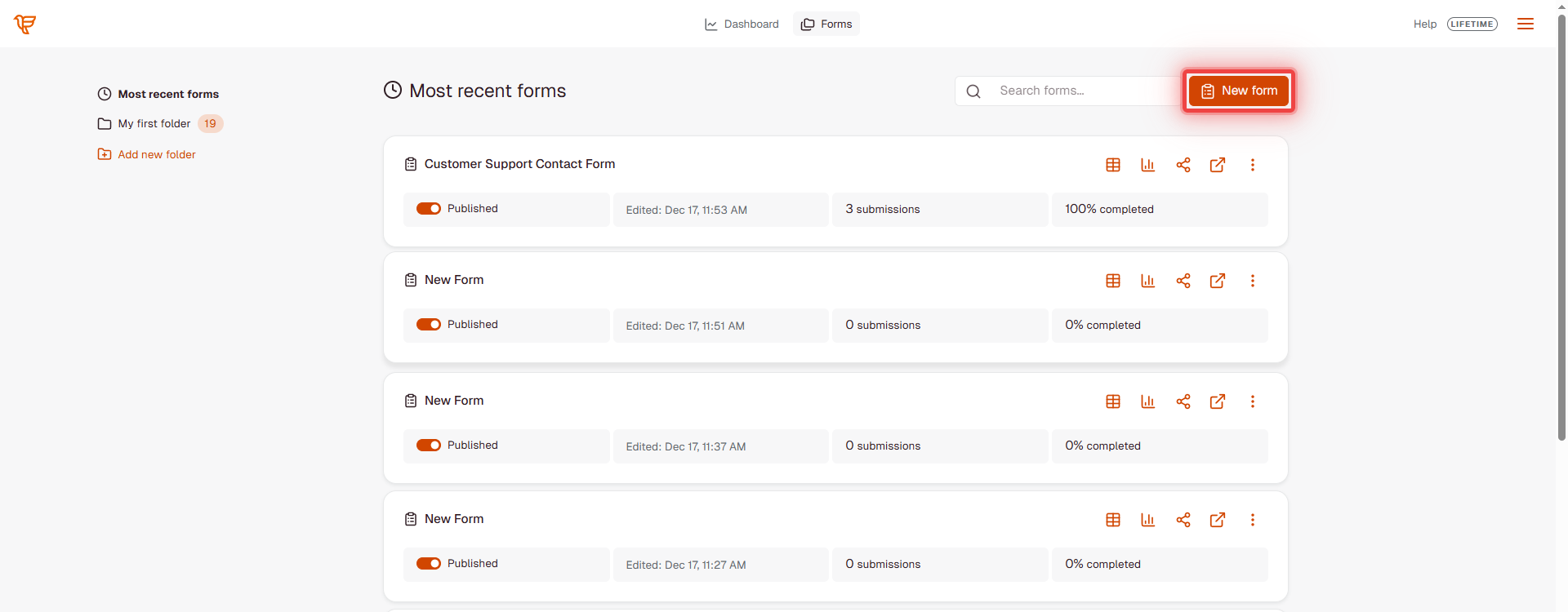
- FormRobin creates a form called "New Form" in your current folder (or your first folder) and opens it in the editor.
-
On the Let's create your form screen, click Start from scratch below the description box. (To have AI build the form instead, describe it in the box and click Generate form — see Creating Forms with AI.)
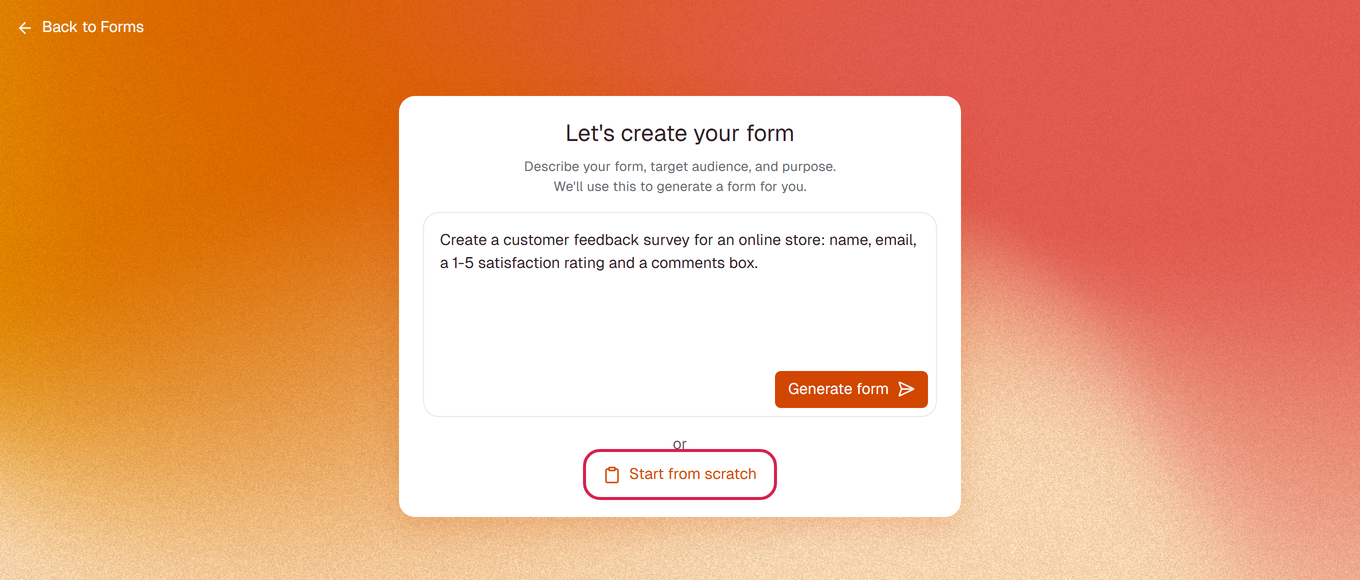
- Click the form name at the top of the form to rename it.
- Add your questions (below), then click Save (or press Ctrl/Cmd+S).
Note: New forms are published as soon as they are created, so the form's link works right away. You can switch Publish form off in Settings at any time.
How do I add form fields?
- Hover between questions (or below the last one) and click the + button (Add a new question).
- Choose one of the 13 question types: Short answer, Long answer, Statement, Email, URL, Multiple choice, Single choice, Checkbox, Phone, Number, Date, File upload and Image. See Form Field Types Explained.
- Type the question text (up to 550 characters) and, if you like, a description below it (up to 250 characters).
- For Short answer, Long answer and Email questions, you can type placeholder text shown inside the answer box.
- To make an answer required, click the asterisk (*) next to the question text (tooltip Require answer). On a smaller screen, use the question's ⋮ menu and choose Require answer.
- Drag a question by its handle (Drag to reorder) to move it.
- Click Save.

Tip: Use an Image question for a logo or product photo, and format the form title, questions and descriptions with bold, italic, colors and links (see Formatting Form Text).
Form Settings
Click Settings at the top of the editor to open the settings panel:
- Publish form - turn the form's public link on or off
- Enable email notifications - get an email at your account address for each submission (on by default)
- Multi-page mode - show one question at a time with navigation buttons (see Creating Multi-Page Forms)
- Enable custom redirect - send people to your own page after they submit (Individual Plan)

Colors and fonts are under Styles. Integrations such as SendFox and Google Sheets are connected under your account Settings → Integrations.
Customizing Your Form
- Format text - bold, italic, colors and links in titles, questions and descriptions
- Add conditional logic - show or hide a question based on another answer (branch icon on a question)
- Change the design - colors, fonts and buttons under Styles
- Edit the submit button - click its text to change it
How do I share my form?
- On the Forms page, click the Share icon on the form's row.
- On Share via link, click Copy share link, or share by email, X or LinkedIn.
- On Embed on website, copy the Embed Code for your site.

Form links look like https://formrobin.com/f/your-form-id.
Viewing Responses
On the Forms page, click the form's row (or its Sessions icon) to see its submissions. From there you can view each response and export them.
Form Creation Best Practices
- Keep it short - ask only for what you need
- Use clear questions - avoid jargon
- Show the expected format - use placeholder text or a description
- Group sections - use Statement questions as headings or instructions
- Consider multi-page mode for longer forms
- Test before sharing - submit a test response on the live form
Troubleshooting
I can't find the New form button
- Click Forms in the top navigation. New form is at the top right of the list, next to the search box.
My changes are gone after I leave the editor
- The editor saves when you click Save (or press Ctrl/Cmd+S). Wait for Saved! before closing the page.
The form link does not open
- Check that Publish form is on in Settings, and copy the link again with the Share icon on the Forms page.
- More checks: Troubleshooting: Form Not Loading.
Still stuck? Email support@formrobin.com with the form's link and a screenshot of the editor.
Frequently Asked Questions
Do I need to publish my form after creating it?
No. New forms are published as soon as they are created. Use Publish form in Settings to take a form offline or back online.
Can I edit a form that is already collecting responses?
Yes. Edit it at any time; your changes go live when you click Save.
Where are the form templates?
New accounts start with ready-made template forms in My first folder. Open one and edit it like any other form (see Using Form Templates).
What is the difference between manual and AI form creation?
With Start from scratch you add every question yourself. With Generate form you describe the form and the AI adds the questions, which you can then edit.