
How to Show One Question per Page with Multi-Page Forms
Multi-page mode shows a FormRobin form one question at a time. In the form editor, click Settings and switch on Multi-page mode; it is saved at once.
What Are Multi-Page Forms?
A multi-page form shows one question per page instead of every question on one scrolling page, which gives a calm, step-by-step experience similar to Typeform. It suits surveys, applications and forms that people fill in on a phone.
| Control | What it does |
|---|---|
| Next | Moves to the next page |
| Back arrow | Returns to the previous page (hidden on the first page) |
| Your submit button | Replaces Next on the last page |
| Enter | Next page |
| Ctrl+Enter (Cmd+Enter on Mac) | Next page from a Long answer question |
Prerequisites
- Plan: available on both plans, Free Plan and Individual Plan
- Form: a form with at least two questions (see Creating Your First Form Manually)
How do I turn on multi-page mode?
- Open your form in the form editor.
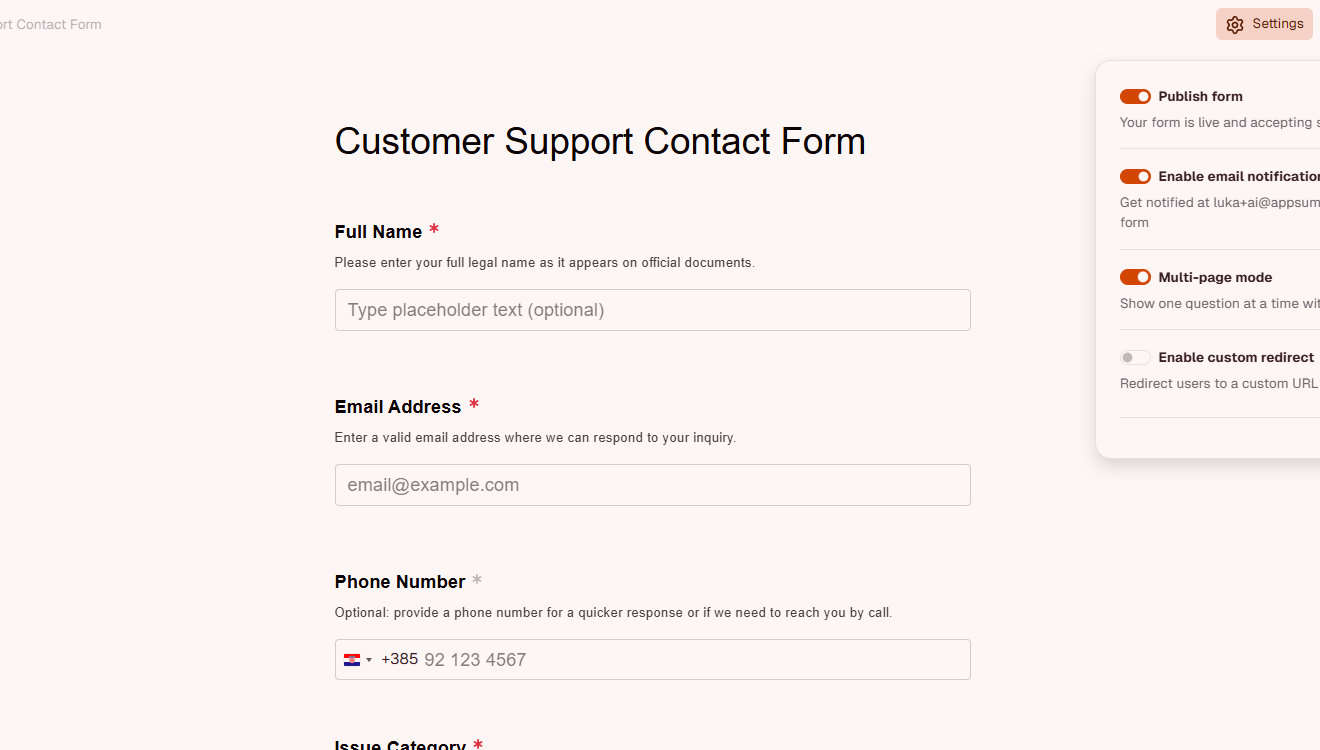
- Click Settings (gear icon) at the top of the editor.
-
Switch on Multi-page mode. The setting is saved immediately; the note under it changes to "Show one question at a time with navigation buttons".
- Click Preview (eye icon, or Ctrl/Cmd+P) to click through the pages.
In the editor itself all questions stay visible so you can edit them.
How do multi-page forms work?
Navigation Between Pages
- One question per page - each question (including Statement and Image blocks) is its own page
- Next - moves to the next page
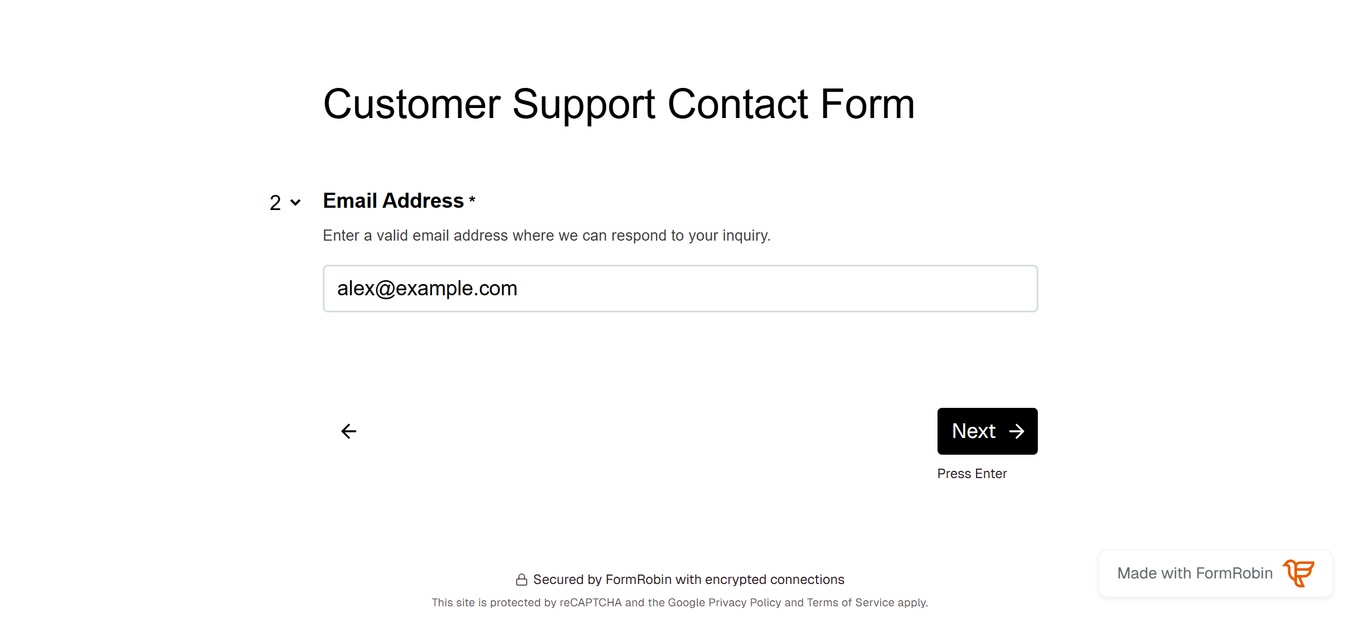
- Back arrow - returns to the previous page (hidden on the first page)
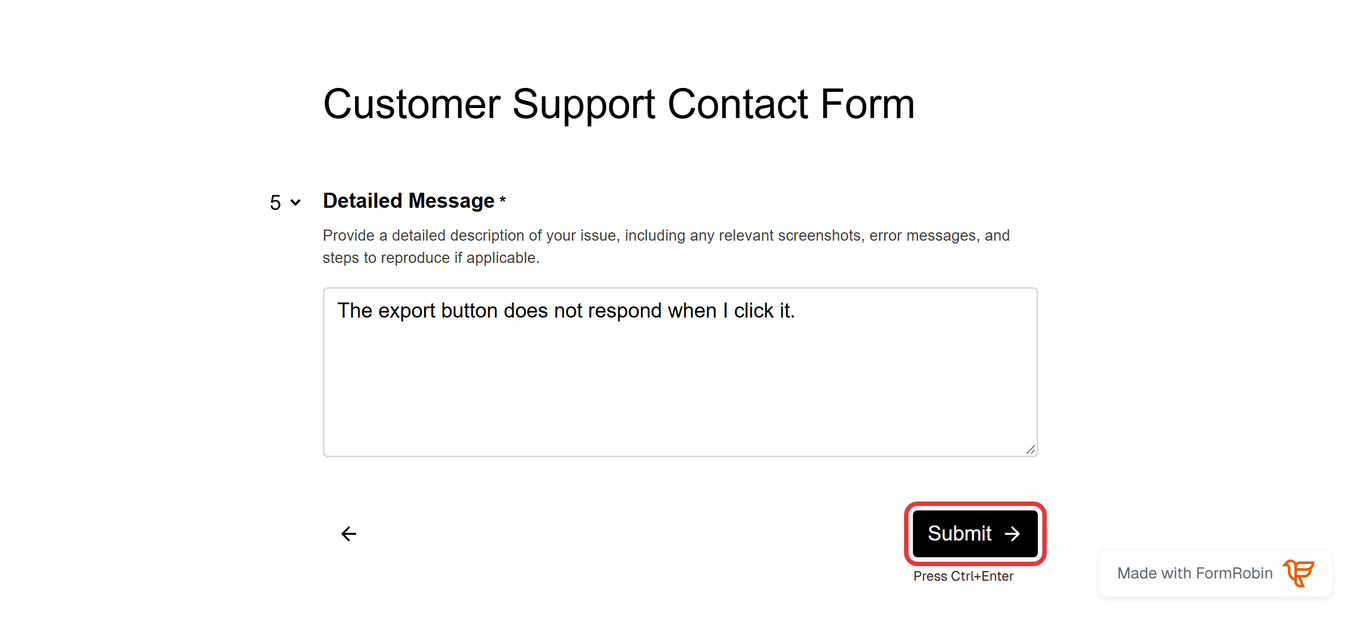
- Submit - on the last page, your submit button replaces Next
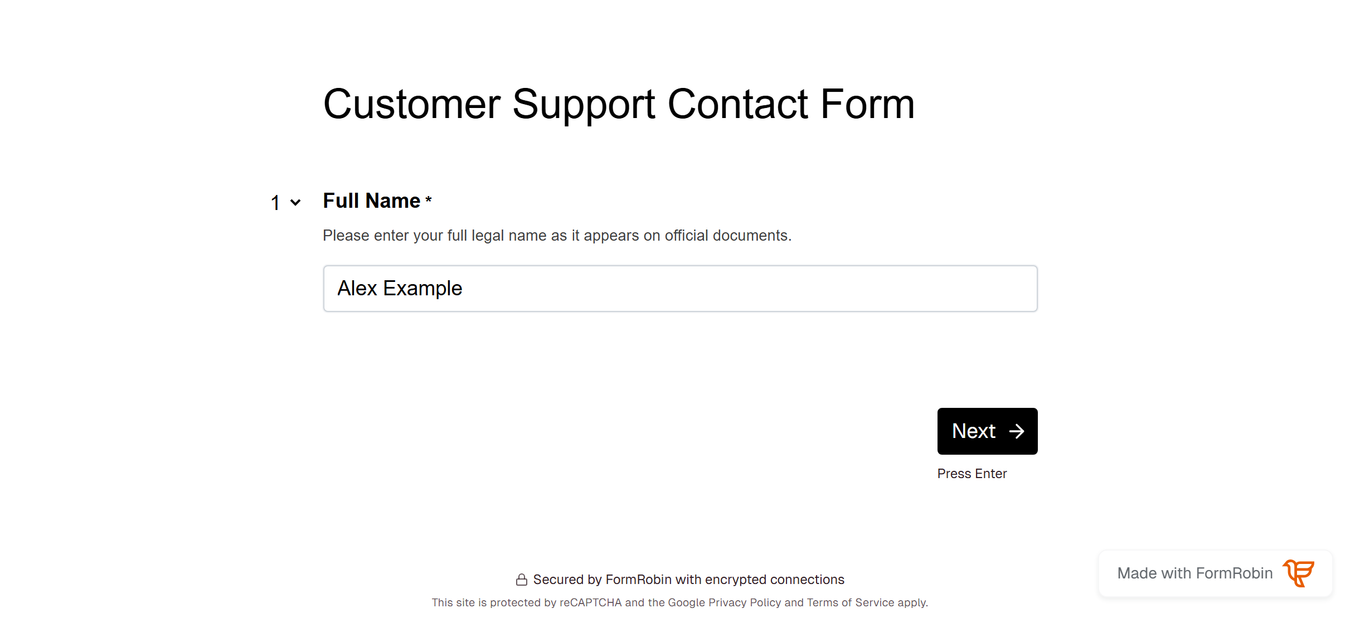
The first page shows Next with a keyboard hint:
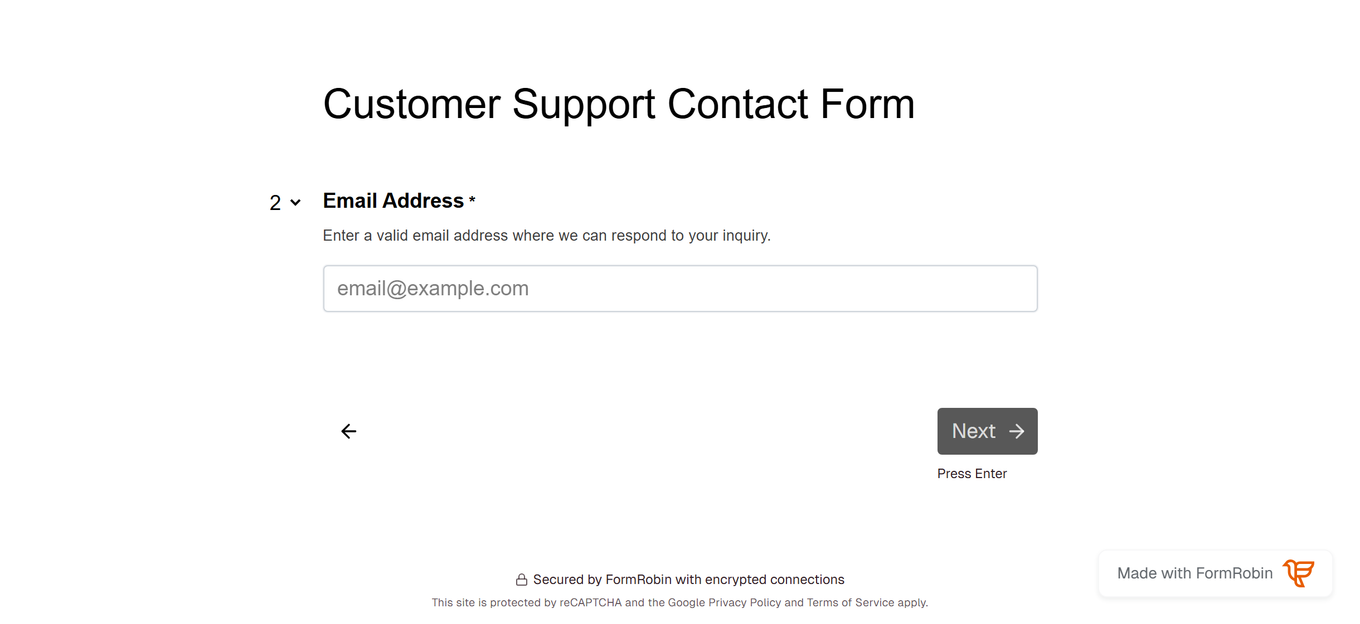
From the second page on, a back arrow lets people return to earlier questions:
On the final page, the submit button replaces Next:
Keyboard Shortcuts
- Enter - next page
- Ctrl+Enter (Cmd+Enter on Mac) - next page from a Long answer question, where Enter starts a new line
- → or ↓ - next page, ← or ↑ - previous page (when the cursor is not in an answer box)
A hint under Next shows which key to press: "Press Enter", or "Press Ctrl+Enter" on a Long answer question.
Required Questions and Answer Checks
- Next stays disabled until a required question is answered.
- Email and URL answers must be in a valid format before Next works.
- Optional questions can be skipped with Next.
Multi-Page with Conditional Logic
Pages whose question is hidden by conditional logic are skipped, so respondents never see an empty page. For example, if question 3 is hidden, Next on question 2 goes straight to question 4. Test your rules on the live form (the View icon on the Forms page).
Single-Page vs Multi-Page: When to Use Each
Use Multi-Page Forms When:
- The form has many questions
- Most people answer on a phone
- Each question needs attention (assessments, applications)
- Later questions depend on earlier answers
Use Single-Page Forms When:
- The form is short (a few questions)
- People want to see every question at once, for example for quick data entry
Styling Multi-Page Forms
Multi-page forms use the same design as the rest of your form: the colors, fonts and button styles you set under Styles also apply to the Next, back and submit buttons.
Testing Your Multi-Page Form
- Click Preview to check the page order and buttons.
- Open the live form (the View icon on the Forms page) and answer every page, using the buttons and the keyboard.
- Try leaving a required question empty: Next should stay disabled.
- Check that questions hidden by your rules are skipped.
- Submit a test response.
How do I turn off multi-page mode?
- Open the form in the editor and click Settings.
- Switch Multi-page mode off. The note changes to "Show all questions on a single page".
Existing responses are not affected.
Best Practices for Multi-Page Forms
- Start easy - put simple, engaging questions first
- Make each question stand alone - it is read on its own page
- Use Statement blocks for short instructions between sections
- Mark required questions so no one skips them
Troubleshooting
The Next button stays disabled
- The current question is required: answer it. Email and URL answers must be complete and valid. To make a question optional, see Creating Your First Form Manually.
Enter does not go to the next page
- On a Long answer question, Enter adds a new line. Press Ctrl+Enter (Cmd+Enter on Mac), or click Next.
The form still shows all questions
- The editor always shows every question. Click Preview, or open the live form, to see one question per page.
- Check that Multi-page mode is on in Settings.
Still stuck? Email support@formrobin.com with the form's link and the question where Next stops working.
Frequently Asked Questions
Can I use multi-page mode on the Free Plan?
Yes. Multi-page mode is included on both plans, Free Plan and Individual Plan.
Does switching modes affect existing responses?
No. Multi-page mode only changes how the form is shown; your responses stay as they are.
Can different forms use different modes?
Yes. Multi-page mode is set per form.
Can I put several questions on one page?
No. In multi-page mode every question has its own page. To show questions together, use single-page mode.