
How to Show or Hide Questions with Conditional Logic
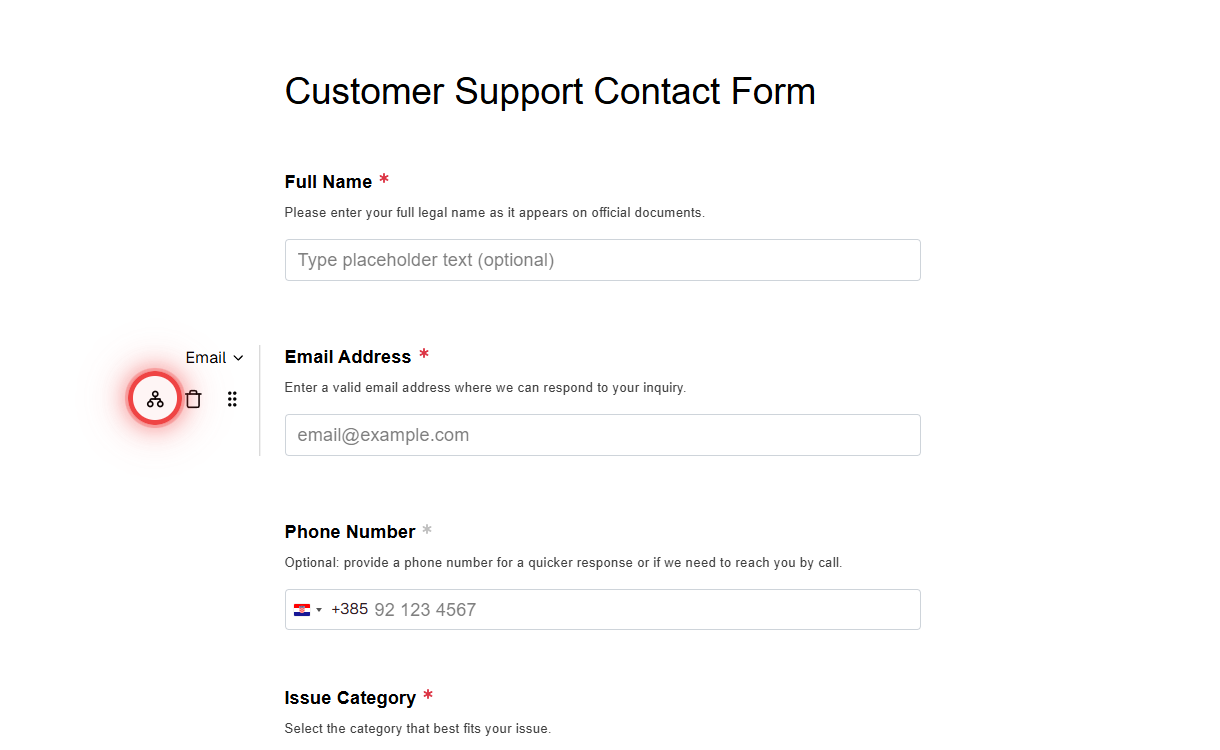
Conditional logic in FormRobin shows or hides a question based on another answer. In the form editor, hover a question and click the branch icon to add a rule.
What Is Conditional Logic?
Conditional logic keeps forms short by showing each respondent only the questions that apply to them. For example, you can:
- Show a "Company name" question only when someone picks "Business" as their account type
- Show a shipping address question only when someone orders a physical product
- Ask "What can we improve?" only when a rating is low
Prerequisites
- Form: a form with at least 2 questions (see Creating Your First Form Manually)
- Plan: available on both plans, Free Plan and Individual Plan
How does conditional logic work?
Each rule is set on the question it controls and reads like a sentence:
When [another question] [operator] [value] Then [show / hide] this question
Example: When "Account type" Is "Business", Then show this question (on the "Company name" question).
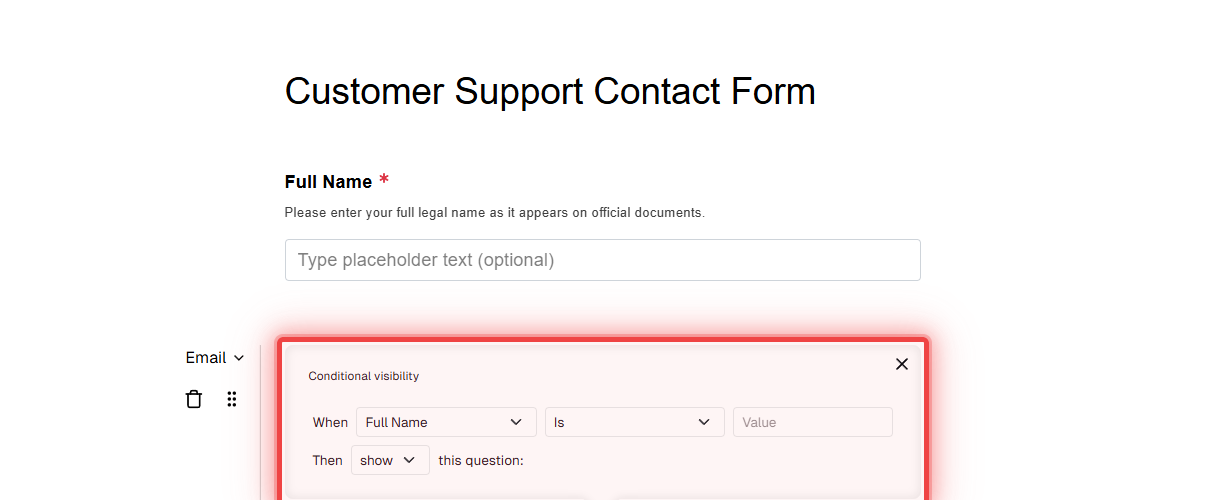
Rules run on the live form as respondents answer, so questions appear and disappear immediately.
| Part of the rule | What you choose |
|---|---|
| When | The question whose answer decides visibility |
| Operator | One of 12, for example Is, Contains or Greater than |
| Value | The answer to compare against (up to 255 characters; not needed for Is empty and Is not empty) |
| Then | show or hide this question |
How do I set up conditional logic?
- Open your form in the form editor.
-
Hover over the question you want to show or hide and click the branch icon (Add conditional visibility). On a smaller screen, tap the ⋮ menu next to the question and choose Add conditional visibility.
- In the Conditional visibility panel, next to When, choose the question whose answer decides visibility.
- Choose an operator (for example Is or Contains) and type the value to compare against.
- Next to Then, choose show or hide this question.
- Click Save.
- Open the live form (the View icon on the form's row) and answer the questions to check the rule.
To remove a rule, click the X in the corner of the Conditional visibility panel and click Save.
Which operators can I use?
FormRobin has 12 operators. Text comparisons ignore upper and lower case, so "business" matches "Business".
Match an Answer
- Is - the answer matches the value
- Is not - the answer does not match the value
Match Part of an Answer
- Contains / Does not contain - the answer includes (or does not include) the value
- Starts with / Does not start with - the answer begins (or does not begin) with the value
- Ends with / Does not end with - the answer ends (or does not end) with the value
Answered or Not
- Is empty - the question has no answer yet
- Is not empty - the question has any answer
These two need no value, so the value box disappears when you pick them.
Compare Numbers and Dates
- Greater than / Less than - compare a number answer with your value, for example with a Number question
- When the When question is a Date question, the value box becomes a date picker and the rule compares dates: Greater than means later, Less than means earlier
See Form Field Types Explained for the question types you can use.
One Rule per Question
Each question has one rule with one When condition. To make several questions depend on the same answer, add the same rule to each of them. For example, to show "Company name", "Tax ID" and "Business address" for business accounts, give each of the three questions the rule When "Account type" Is "Business", Then show.
Which actions can a rule take?
- show - the question is hidden until the condition is met, then it appears
- hide - the question is visible until the condition is met, then it disappears
Common Use Cases
Account Type Branching
Ask "Account type" as a Multiple choice question with "Personal" and "Business". On each business-only question, add When "Account type" Is "Business", Then show.
Feedback Follow-ups
Ask "How would you rate us from 1 to 5?" as a Number question. On "What can we improve?", add When the rating Less than 3, Then show.
Product Variations
Ask "Product type" with "Physical" and "Digital". On "Shipping address", add When "Product type" Is "Physical", Then show.
Best Practices
- Base rules on earlier questions - respondents answer from top to bottom, so a rule that depends on an earlier question feels natural. In multi-page forms, pages whose question is hidden are skipped.
- Test every path - on the live form, try each answer that should show or hide a question.
- Explain why a question appears - use the question description when the follow-up is not obvious.
Limitations
- One condition per rule: a rule checks one question (see One Rule per Question).
- First question: the first question of a form cannot have a rule.
- Value length: the comparison value can be up to 255 characters.
- Required questions: a required question that is hidden by its rule is not required when the form is submitted.
Troubleshooting
The Add conditional visibility button is missing
- The button appears when you hover over a question in the form editor. On a smaller screen it is in the question's ⋮ menu.
- The first question of a form cannot have a rule. Move the question down, or add the rule to a later question.
A question does not show or hide as expected
- Check the three parts of the rule: the When question, the operator and the value. Look for typos and extra spaces in the value.
- Remember what show means: the question stays hidden until the condition is met.
- Test on the live form (the View icon) after clicking Save.
Greater than or Less than does not match
- Enter a plain number as the value (for example
3, not "three"), and use a Number question for the answer (see Form Field Types Explained). - For a Date question, pick the date in the date picker; the rule compares full dates.
Still stuck? Email support@formrobin.com with the form's link and the rule you set up (the When question, operator and value).
Frequently Asked Questions
Is conditional logic available on the Free Plan?
Yes. Conditional logic is included on both plans, Free Plan and Individual Plan.
Can one question depend on several answers?
No. Each question has one rule with one condition. To make several questions depend on the same answer, add the same rule to each of them.
What happens to a required question that is hidden?
It is not required. Respondents can submit the form without answering a required question that its rule has hidden.
Are rules kept when I duplicate a form?
Yes. Duplicating a form copies its questions together with their rules. See Duplicating Forms.