
How Many AI Form Generations Do You Get Each Month?
FormRobin includes 2 AI form generations a month on the Free Plan and 50 on the Individual Plan. Check what is left under Plan → Usage and limits.
AI Generation Overview
FormRobin's AI builds a form from a plain-language description (see Creating Forms with AI). Each month it can build 2 forms on the Free Plan and 50 on the Individual Plan:
| Plan | AI form generations per month | Count resets |
|---|---|---|
| Free Plan | 2 | 1st of each month, 00:00 UTC |
| Individual Plan | 50 | 1st of each month, 00:00 UTC |
How AI Generations Work
Each successful AI generation counts as one generation: you click Generate form and the AI builds the form. Things that do not count:
- A generation that fails
- Editing an AI-generated form afterwards
- Duplicating a form
- Creating a form with Start from scratch
When does my quota reset?
- Reset date: the count starts again on the 1st of each month at 00:00 UTC
- No rollover: unused generations do not carry over to the next month
- Automatic: your full allowance is available again each month
How do I check my remaining quota?
On the Plan Page
- Open the account menu (☰) in the top right.
- Select Plan.
- Find Usage and limits.
- Look at the AI Generations bar.
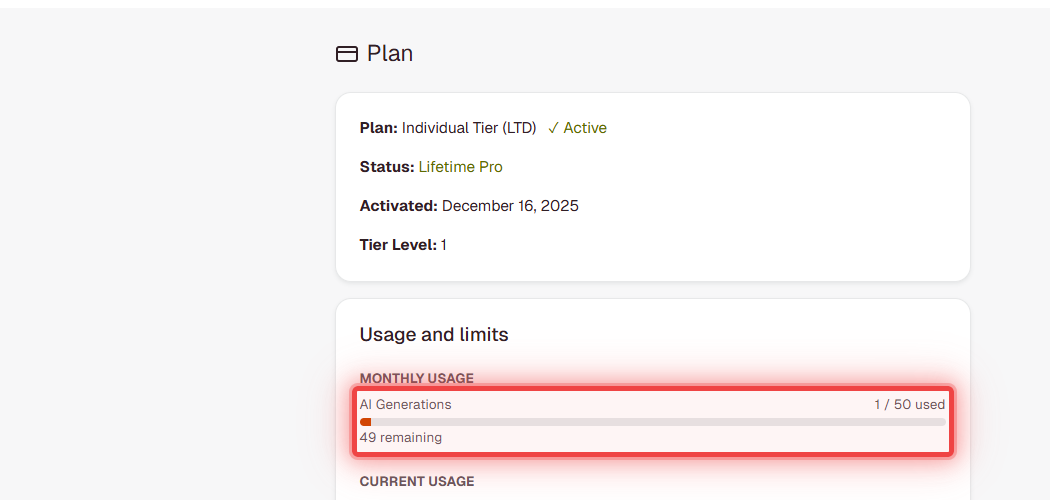
The meter shows:
- X / Y used: generations used this month out of your monthly limit
- Z remaining: generations left this month
- Limit reached. Resets on …: shown instead when none are left, with the date of the 1st of next month
- Color: the bar turns yellow at 70% used and red at 90% used
Where You Use Them
You use a generation from the AI screen of a new form: click New form, then on the Let's create your form screen describe your form and click Generate form.

Tips to Maximize Your AI Generations
- Be specific: detailed prompts give better results on the first try
- Plan first: decide which questions you need before generating
- Edit instead of regenerating: small changes are quicker in the editor and cost nothing
- Duplicate: copy an existing form and adapt it instead of generating a new one (see Duplicating Forms)
- Start from scratch for short, simple forms and save the AI for longer ones
Increasing Your Quota
The Individual Plan ($19 one-time) raises the allowance from 2 to 50 AI generations per month. See Understanding FormRobin Plans.
What happens when I reach my limit?
- Clicking Generate form shows: "You've reached your AI form generation limit for the month. Upgrade for more!"
- The Plan page shows "Limit reached. Resets on" with the reset date.
- You can still create forms with Start from scratch.
- Your allowance resets automatically on the 1st of next month.
Your existing forms keep working normally; the limit only affects building new forms with AI.
Troubleshooting
I see "You've reached your AI form generation limit for the month"
- All generations for this month are used. Check Plan → Usage and limits for the reset date, create the form with Start from scratch, or upgrade to the Individual Plan for 50 per month (see Understanding FormRobin Plans).
Two generations a month are not enough
- Upgrade to the Individual Plan for 50 generations per month, or reuse forms by duplicating them (see Duplicating Forms).
My allowance did not reset when I expected
- The reset happens at 00:00 UTC on the 1st, which can be the evening before or the morning of the 1st in your time zone. If it has passed and your allowance has not reset, contact support at support@formrobin.com.
Still stuck? Contact support at support@formrobin.com with your account email and what Plan → Usage and limits shows.
Frequently Asked Questions
Do edits to AI-generated forms count toward my quota?
No. Only successful AI generations count. Editing afterwards is unlimited.
Can I save unused generations for next month?
No. Unused generations do not roll over; the full allowance returns on the 1st of each month.
Does duplicating an AI-generated form use a generation?
No. Duplicating any form never uses a generation.
How do I know if I'm about to run out?
Check the AI Generations bar on the Plan page. It turns yellow at 70% used and red at 90% used, and shows how many generations remain.