
How to Organize FormRobin Forms with Folders
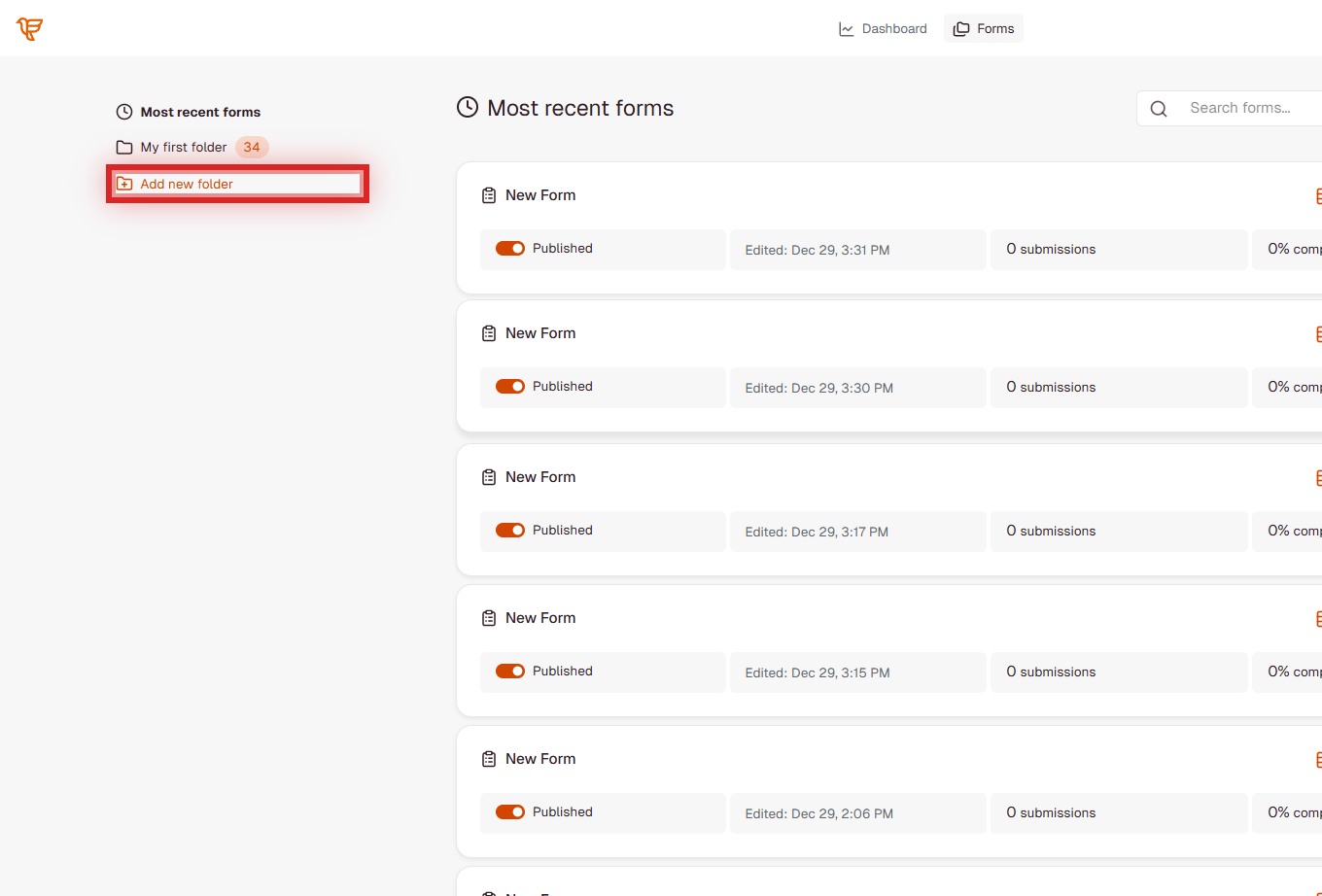
Folders keep your FormRobin forms organized. On the Forms page, click Add new folder in the left sidebar, then use Move to folder on any form to file it.
What Are Folders?
Folders group your forms, for example by client, campaign or form type. You can:
- Create, rename and delete folders
- Create a new form directly inside a folder
- Move forms from one folder to another
- Show only the forms of one folder, and search them by name
Every account starts with a folder called My first folder. Folders are available on both plans, Free Plan and Individual Plan. Your Plan page counts your folders as Workspaces: the Free Plan includes 1 and the Individual Plan 3 (see Understanding FormRobin Plans).
| To do this | Go here |
|---|---|
| Create a folder | Forms → Add new folder (left sidebar) |
| Create a form inside a folder | Click the folder, then New form |
| Move a form | The form's ⋮ menu → Move to folder |
| Rename a folder | The folder's ⋮ menu → Edit |
| Delete an empty folder | The folder's ⋮ menu → Delete |
How do I create a folder?
- Click Forms in the top navigation.
- In the left sidebar, click Add new folder.
- Enter a Folder Name.
- Click Create Folder.
FormRobin opens the new, empty folder, and it appears in the sidebar.
Adding Forms to Folders
Creating a Form Inside a Folder
- Click the folder in the left sidebar.
- Click New form.
The new form is created in that folder. From Most recent forms, New form puts the form in your first folder. See Creating Your First Form Manually.
How do I move a form to a folder?
- On the Forms page, find the form.
- Click the ⋮ (More) menu on its row and choose Move to folder.
- In the Move Form window, pick a folder from Select a folder... (each shows how many forms it holds).
- Click Move. A "Form moved successfully!" message confirms it.
How do I see only one folder's forms?
- Click a folder in the left sidebar to show only its forms. Its badge shows how many forms it holds.
- Click Most recent forms to see every form again, most recently changed first.
- On a small screen, use the Select a folder: dropdown instead of the sidebar.
- Use Search forms... to find forms by name in the list you are viewing.

How do I rename a folder?
- Hover over the folder in the left sidebar and click its ⋮ menu.
- Choose Edit.
- Change the Folder Name and click Update Folder.
How do I delete a folder?
Requirements
You can only delete an empty folder. Move its forms to another folder, or delete them, first.
Steps to Delete
- Empty the folder.
- Click the folder's ⋮ menu in the sidebar and choose Delete.
- Confirm the question "Are you sure you want to delete this folder?".
"Folder must be empty to delete it."
This message means the folder still holds forms. Move or delete them, then delete the folder again.
Assigning Forms to Folders via the API
Folders are created, renamed and deleted on the Forms page only; the API has no folder endpoints. You can place forms in your existing folders with the Forms API (see Creating Forms via API).
Create a Form in a Folder
Include folder_id when creating a form:
POST /api/v1/forms

{
  "name": "My New Form",
  "folder_id": 456
}
Move a Form to a Different Folder
Change folder_id when updating a form:
PUT /api/v1/forms/{id}

{
  "folder_id": 789
}
Set folder_id to null to take a form out of its folder. The folder must exist and belong to your account; otherwise the request fails with a validation error (unknown folder) or a not-found error (another account's folder).
Organization Best Practices
- Clear names - "Q1 2026 Campaigns" says more than "Folder 1"
- One scheme - organize consistently by client, campaign or form type
- Archive folder - move forms you no longer use into an "Archive" folder
- Regular cleanup - review your folders now and then
Example Folder Setups
By Client or Project
Client A · Client B · Internal
By Form Type
Lead Generation · Customer Feedback · Event Registration · Archive
By Campaign
Q1 Campaign · Q2 Campaign · Holiday Promo · Archive
Limitations
- One level: folders cannot contain other folders
- One form at a time: forms are moved individually
- Always in a folder: on the Forms page, a form moves from one folder to another; it cannot be taken out of all folders
- Private: your folders and their forms are visible only in your account
- No folder settings: settings belong to each form, not to the folder
- Forms page only: folders are managed on the Forms page, not through the API
Troubleshooting
I cannot delete a folder
- You see "Folder must be empty to delete it." Move or delete every form in the folder, then try again. To delete forms, see Deleting and Restoring Forms.
A form is not in the folder I expected
- Click Most recent forms to see all forms, or search for the form name with Search forms....
- Move it with ⋮ → Move to folder.
"Please select a folder to move the form to."
- Pick a folder from Select a folder... in the Move Form window before clicking Move.
Still stuck? Email support@formrobin.com with the folder name and a screenshot of the message you see.
Frequently Asked Questions
Can I share a folder with team members?
No. Folders and the forms in them are visible only in your own account.
Can I put folders inside other folders?
No. Folders are one level deep. Use clear folder names to group related forms.
What happens to forms when I delete a folder?
Nothing, because only empty folders can be deleted. Move or delete the forms first.
Can I manage folders through the API?
No. Create, rename and delete folders on the Forms page. Through the API you can place a form in an existing folder with folder_id.