
How to Embed a FormRobin Form on Your Website
Embed a FormRobin form on any website with a short code snippet. On the Forms page, click the form's Share icon, open Embed on website and copy the code.
Prerequisites
- Form: a published form (new forms are published automatically; see Publishing and Sharing Your Form)
- Website access: you can add HTML to your website's pages
- Plan: embedding is available on both plans, Free Plan and Individual Plan
How do I embed a form?
- Click Forms in the top navigation and make sure the form's toggle shows Published.
-
Click the Share icon on the form's row. (The icon only appears on published forms.)
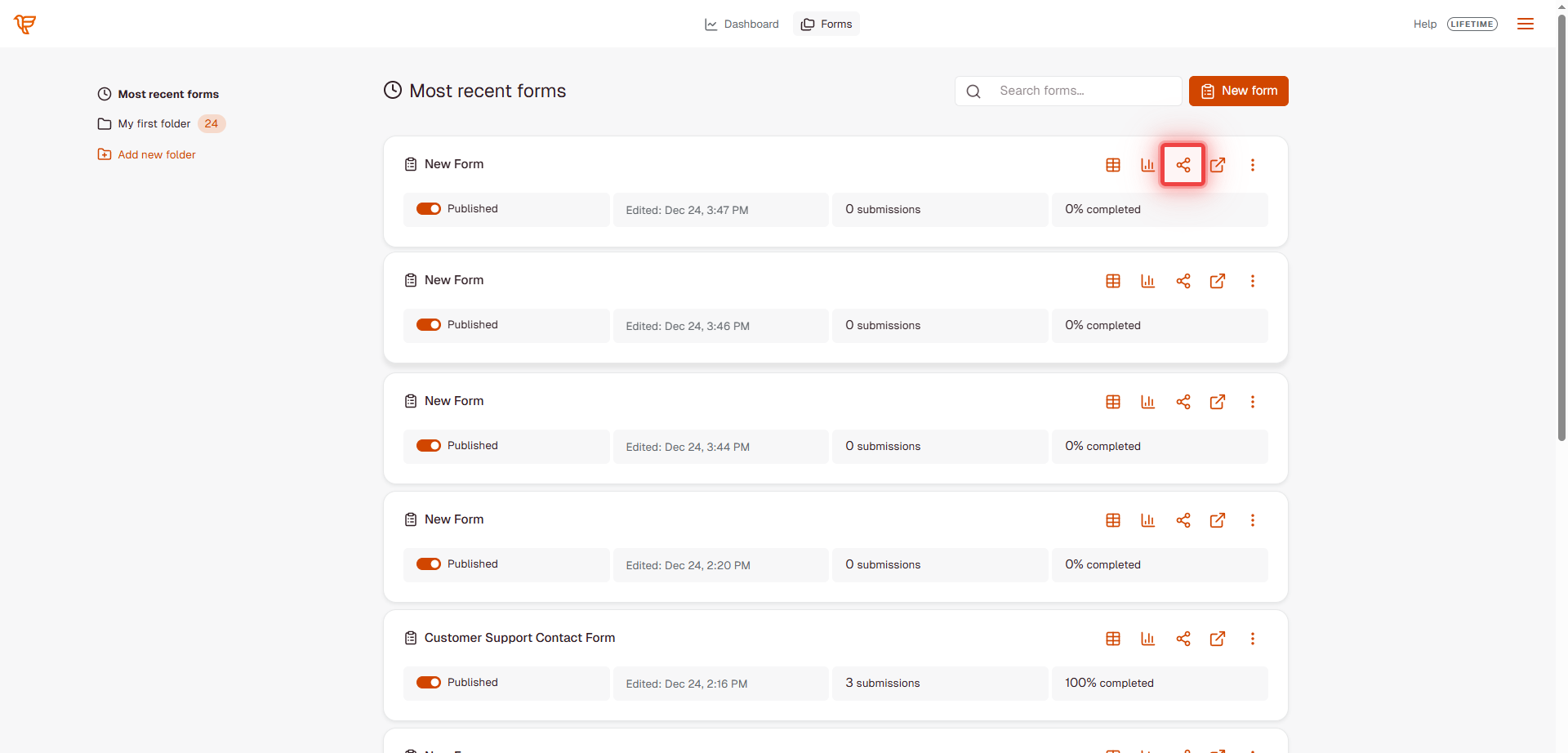
-
In the Share window, click the Embed on website tab.
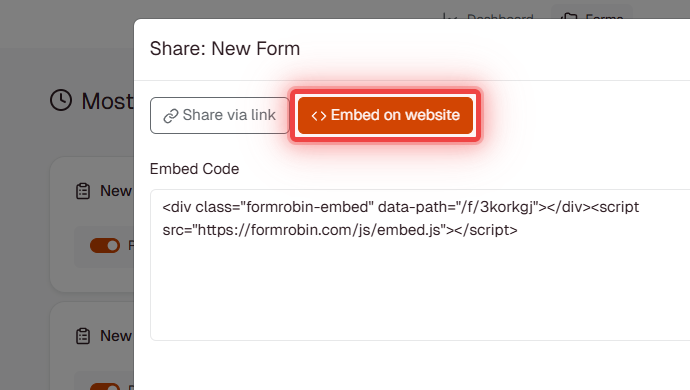
- Click Copy Code to copy the code in the Embed Code box.
- Paste the code into your website's HTML where the form should appear.
- Save and publish the page on your website.
What does the embed code look like?
The embed code is a placeholder element plus FormRobin's embed script:
<div class="formrobin-embed" data-path="/f/your-form-slug"></div>
<script src="https://formrobin.com/js/embed.js"></script>
How it works:
- The
<div>marks where the form goes. Its data-path is your form's address (/f/followed by the form's code of lowercase letters and numbers). - The
<script>loads FormRobin's embed script, which finds everyformrobin-embedelement on the page and shows the form in its place. - The form fills the width of its container and its height adjusts automatically to the content, so you never set a height yourself.
Benefits of the Embed Code
- Auto-resize - the height follows the form's content, including when respondents move between pages of a multi-page form
- Responsive - the form takes the full width of its container on mobile and desktop
- Any website - there are no domain restrictions; paste the code on as many sites and pages as you like
How do I embed a form on my website builder?
WordPress
- Edit the page or post where you want the form.
- Add a Custom HTML block.
- Paste the embed code.
- Update or publish the page.
If your theme or a security plugin removes script tags, add the code with a plugin that allows scripts, or ask your theme developer.
Wix
- Click Add (+) on your page.
- Choose Embed → Embed HTML.
- Paste the complete embed code (both lines).
- Adjust the position and size, then publish your site.
Squarespace
- Edit the page where you want the form.
- Add a Code block.
- Paste the embed code.
- Save and publish.
Shopify
- Go to Online Store → Pages.
- Edit a page or create a new one.
- Switch the editor to HTML (the Show HTML button).
- Paste the embed code and save the page.
Webflow
- Drag an Embed element onto your page.
- Paste the embed code.
- Publish your site.
Custom HTML Websites
- Open the page's HTML file.
- Paste the embed code where the form should appear, for example inside a content container.
- Upload the updated file to your server.
Advanced: Custom Container Styling
To control the form's width and spacing on your page, wrap the embed code in your own container:
<div style="max-width: 800px; margin: 0 auto; padding: 20px;">
  <div class="formrobin-embed" data-path="/f/your-form-slug"></div>
  <script src="https://formrobin.com/js/embed.js"></script>
</div>
This centers the form and limits its width on wide screens. The form's own colors and fonts are set in FormRobin (see Form Styling and Customization).
What happens after I embed a form?
- Visitors fill in the form without leaving your website.
- Submissions appear on the form's Sessions page in FormRobin.
- Email notifications are sent as usual, if enabled.
- With a custom redirect (Individual Plan), the whole page, not just the form, goes to your redirect URL after submission.
- If you unpublish the form, the embed stops showing it; publish it again and the same code works.
Limitations
- JavaScript required: the embed script needs JavaScript enabled in the visitor's browser.
- Script tags: some website builders or plugins remove script tags; use a block or plugin that allows them.
- Styling: the form's look is controlled in FormRobin, not by your website's CSS.
Troubleshooting
The form does not appear
- Check that the form shows Published on the Forms page.
- Check that both lines of the code (the
<div>and the<script>) are on the page. - More checks: Troubleshooting: Embedding Issues.
My website builder removes the script tag
- Use the builder's HTML or code block (WordPress Custom HTML, Wix Embed HTML, Squarespace Code), or a plugin that allows scripts.
- Contact your platform's support if custom scripts are blocked on your plan.
I can't find the Share icon
- The Share icon only appears on published forms. Turn on the form's toggle on the Forms page.
Still stuck? Email support@formrobin.com with the address of the page where the form is embedded and your embed code.
Frequently Asked Questions
Can I embed several forms on one page?
Yes. Add one <div class="formrobin-embed"> per form, each with its own data-path, and include the <script> line once.
Can I embed the same form on several pages or websites?
Yes. Use the same code on as many pages and websites as you like; all submissions go to the same form.
Can I change how the embedded form looks?
Style the form in FormRobin's form editor. On your own page you can style the container around the form, such as its width and spacing.
Can I use a plain iframe instead of the embed code?
Use the embed code. It sizes the form to its content automatically, which a fixed-size frame cannot do.