
How to Add a File Upload Question and Set Its Limits
A File upload question lets respondents attach a file to your FormRobin form. Add it from the question list, then set the allowed types and a limit up to 50 MB.
What Is the File Upload Field?
A File upload question lets people attach a file when they submit your form. Common uses:
- Job applications (resumes, portfolios)
- Support requests (screenshots, logs)
- Document collection (contracts, signed forms)
- Image submissions (photos, artwork)
Plan: available on both plans, Free Plan and Individual Plan.
At a glance:
| Setting | Default | Options |
|---|---|---|
| Maximum file size (MB) | 10 MB | 1 to 50 MB per question |
| File types allowed | All file types | Images, PDF documents, Word documents, Excel files, Text files or Archive files |
| Files per question | One file | Add more File upload questions for more files |
How do I add a File Upload field?
-
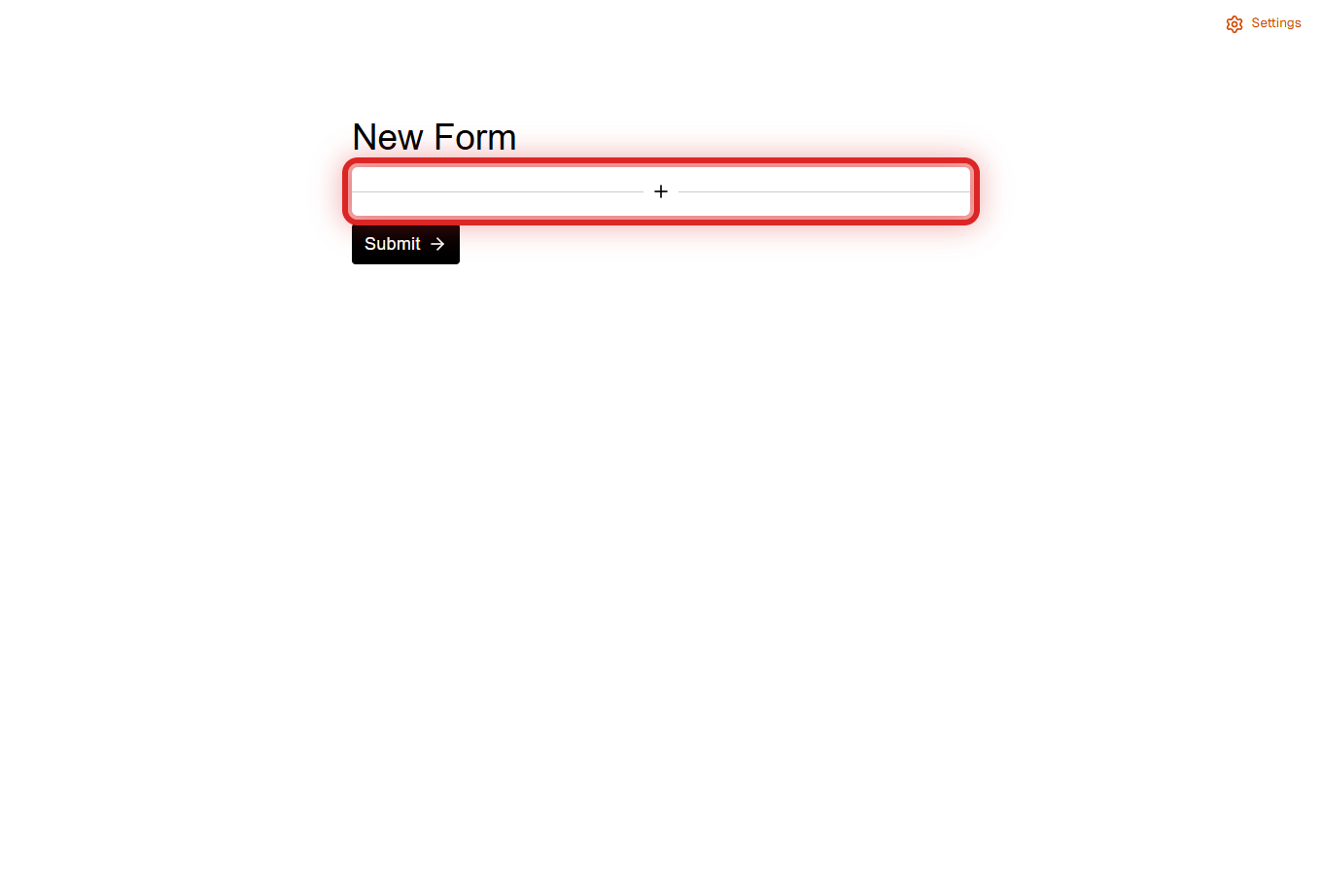
Open your form in the form editor and click the + button (Add a new question).
-
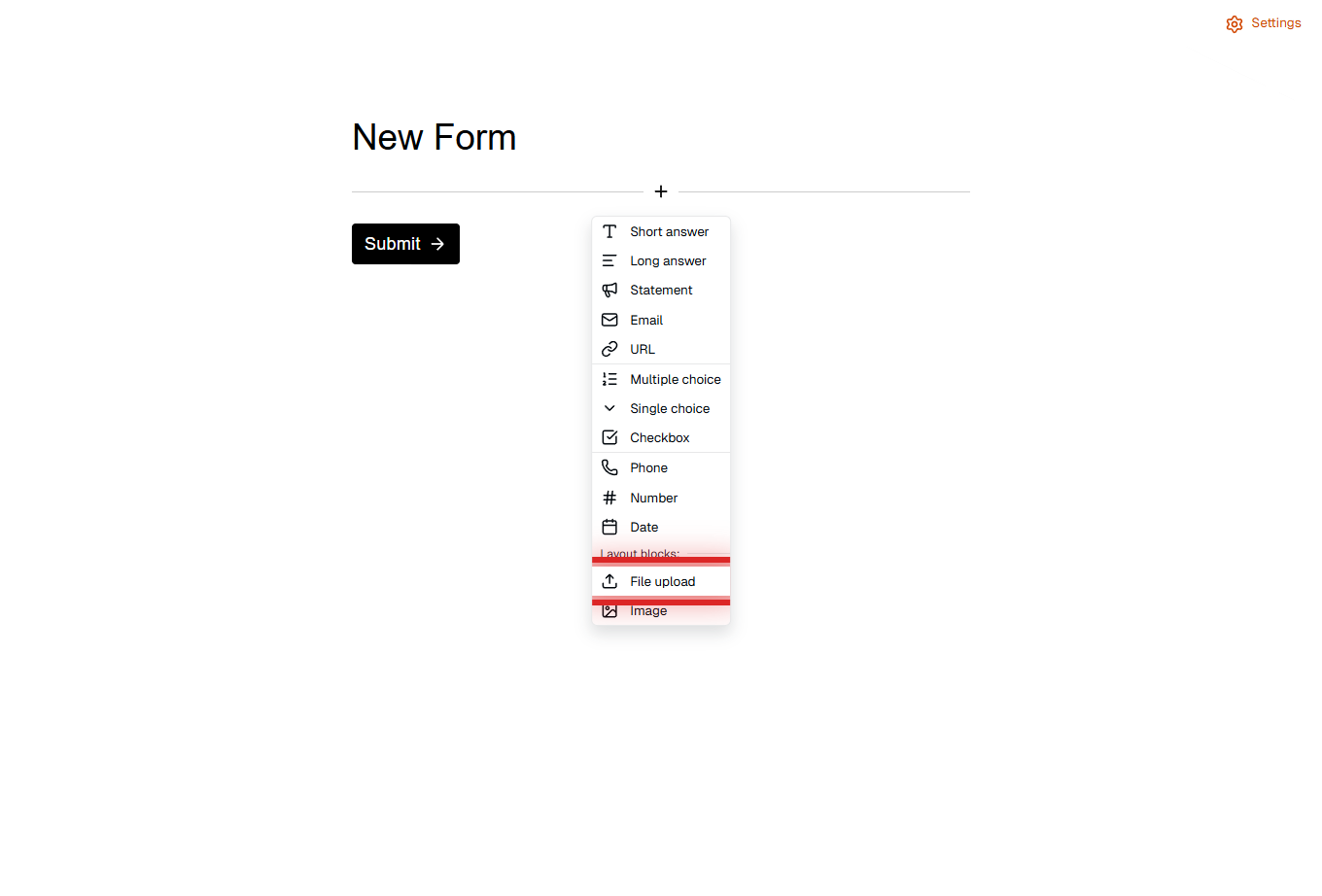
Choose File upload from the list.
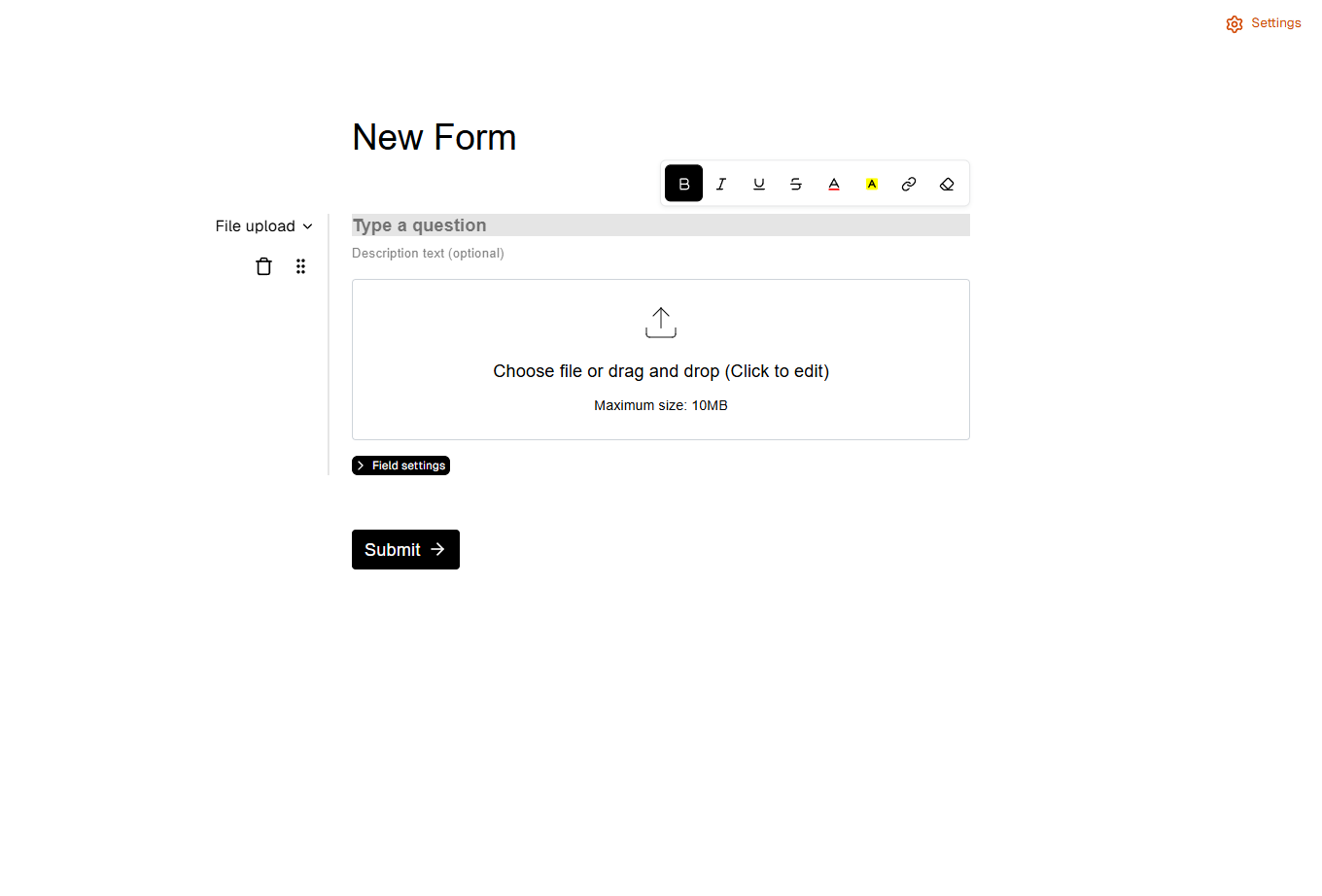
- Type the question (for example "Upload your resume") and, if you like, a description.
- To make the upload mandatory, click the asterisk (Require answer) next to the question.
- Click the text inside the upload area to change it (default: "Choose file or drag and drop").
-
Click Field settings to set the allowed file types and the maximum size, then click Save.
File Upload Field Options
- Question and description: the instruction respondents see
- Require answer: make the upload mandatory or optional
- File types allowed (in Field settings): All file types, Images, PDF documents, Word documents, Excel files, Text files or Archive files
- Maximum file size (MB) (in Field settings): 1 to 50 MB, default 10 MB
Each File upload question accepts one file.
What are the file upload limits?
File Size Limit
- Default: 10 MB per file
- Range: 1 MB to 50 MB, set per question in Maximum file size (MB)
Respondents see the limit under the upload area ("Maximum size: 10MB"). A larger file is refused with the message "File size must be less than 10MB" (with your limit).
File Type Restrictions
Choose one option in File types allowed:
- All file types (default)
- Images - .jpg, .jpeg, .png, .gif, .webp
- PDF documents - .pdf
- Word documents - .doc, .docx
- Excel files - .xls, .xlsx
- Text files - .txt
- Archive files - .zip, .rar
With a restriction set, respondents see the allowed types under the upload area, and any other file is refused with "This file type is not allowed".
Number of Files
Each File upload question takes one file. To collect several files, add several File upload questions with clear labels, such as "Resume", "Cover letter" and "Portfolio".
File Storage
- Files are stored privately with the submission they belong to.
- Image files are scaled down to at most 1200 pixels on their longest side to save space; other files are stored as uploaded.
- Only people signed in to FormRobin with access to the form can download them.
Viewing Uploaded Files
- On the Forms page, click the Sessions icon on the form's row.
- Find the submission. The File upload column shows the file name and size.
- Click the file name to download it.
More about the Sessions page: Viewing and Managing Form Responses.
What Respondents See
- They click the upload area, or drag a file onto it.
- The file name, size and type appear; the X removes the file.
- The file is sent together with the form when they submit.
Best Practices
- Say what you accept: mention the formats and size limit in the description
- Be specific: "Upload your resume (PDF)" works better than "File"
- Offer an alternative for very large files: ask for a link to cloud storage instead
- Test: submit a test file on the live form before sharing it
- Scan downloads: FormRobin does not scan uploaded files, so check them with your antivirus software
Limitations
- File size: up to 50 MB per file (set per question, default 10 MB)
- One file per question: add more File upload questions for more files
- Preset type groups: choose from the listed groups, not custom extensions
- Images are resized: to at most 1200 pixels on the longest side
Troubleshooting
"File size must be less than …MB"
- The file is bigger than the question's Maximum file size (MB). Raise the limit (up to 50 MB) in Field settings, or ask respondents to compress the file.
"This file type is not allowed"
- The question only accepts one group of types. Change File types allowed to All file types, or ask for a file in the listed format.
I can't find an uploaded file
- Open the form's Sessions page and look in the File upload column of that submission. If the column is empty, the respondent submitted without a file; make the question required if you need one. More about the Sessions page: Viewing and Managing Form Responses.
More help for respondents: Troubleshooting: File Upload Errors. Still stuck? Email support@formrobin.com with the form's link, the file's type and size, and a screenshot of the message.
Frequently Asked Questions
What's the maximum file size?
10 MB by default. You can set each File upload question anywhere from 1 MB to 50 MB in Maximum file size (MB).
Can one question accept several files?
No. Each File upload question accepts one file; add more questions to collect more files.
Can I accept only PDFs?
Yes. Set File types allowed to PDF documents (.pdf). Other files are refused.
Can respondents see files others uploaded?
No. Uploaded files are private; only people signed in to FormRobin with access to the form can download them.