
How to Add Form Submissions to a SendFox List
Send new form submissions to a SendFox email list automatically. Connect SendFox under Settings → Integrations, then choose a list for each form.
What Is the SendFox Integration?
SendFox is an email marketing platform. When you connect FormRobin to SendFox, every completed submission of a linked form adds the respondent to the SendFox list you chose, with their email address and name.
Plan requirement: the SendFox integration is included on both FormRobin plans, Free Plan and Individual Plan. It works through SendFox's API, which requires a paid SendFox plan that includes API access. SendFox's own free plan does not include API access, so your lists won't load and submissions won't sync until your SendFox account is on a qualifying plan. This requirement is set by SendFox, not FormRobin.
| SendFox integration at a glance | |
|---|---|
| FormRobin plan | Free Plan and Individual Plan |
| SendFox plan | A paid SendFox plan with API access |
| Where to connect | Settings → Integrations |
| What is sent | Email address, first name and last name |
| When | Each completed submission of a linked form, in the background |
Prerequisites
- FormRobin account: Free Plan or Individual Plan
- SendFox account: on a paid SendFox plan that includes API access — sendfox.com
- SendFox list: at least one list in your SendFox account
- Email question: the form needs an Email question, because that is the address added to SendFox (see Form Field Types Explained)
Step 1: Connect Your SendFox Account
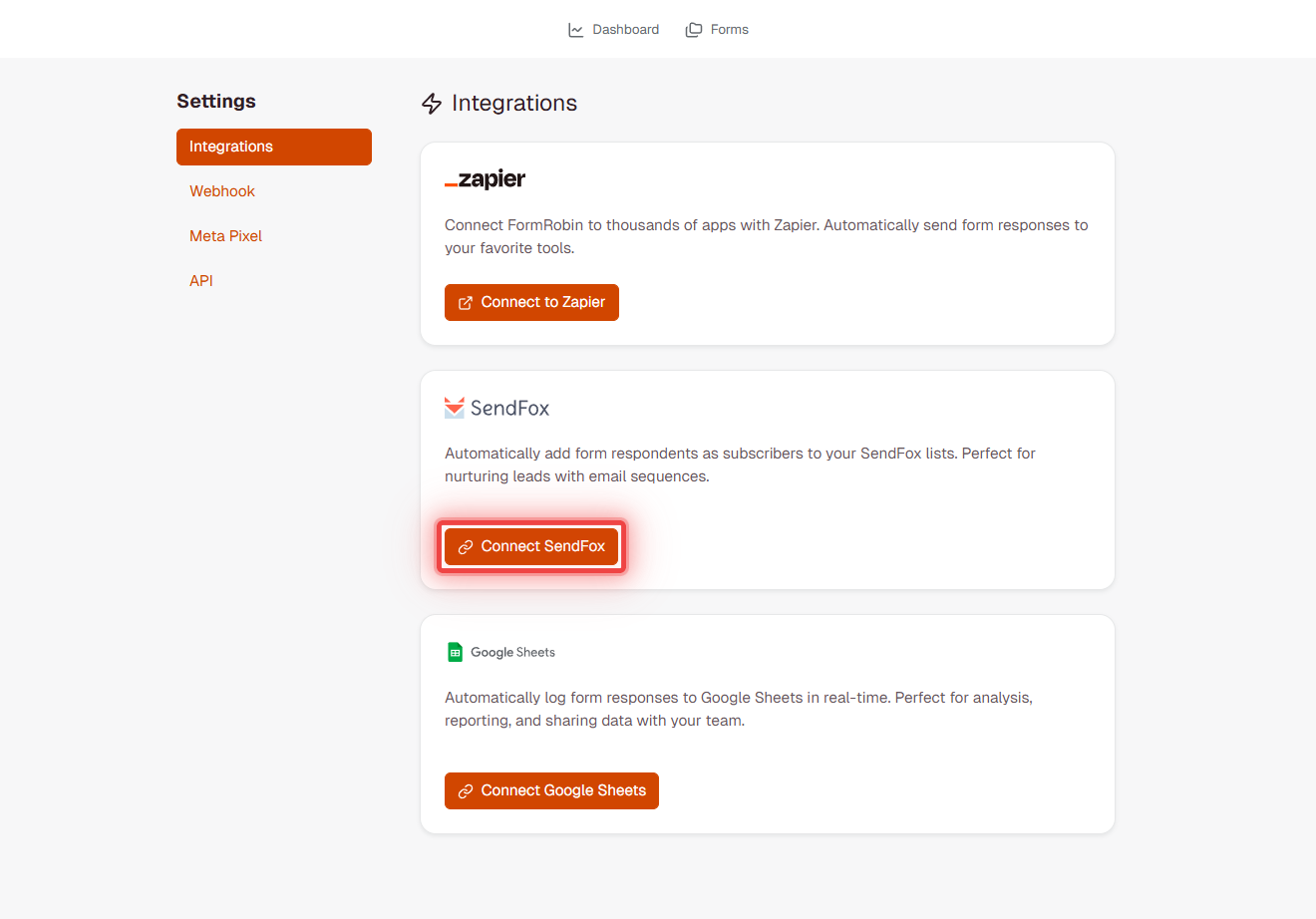
- Open the account menu in the top right and select Settings. The Integrations page opens.
- In the SendFox section, click Connect SendFox.
- You are taken to SendFox. Approve the connection there.
- Back in FormRobin you see "SendFox connected successfully." and the status Connected to SendFox.
Step 2: Link a Form to a SendFox List
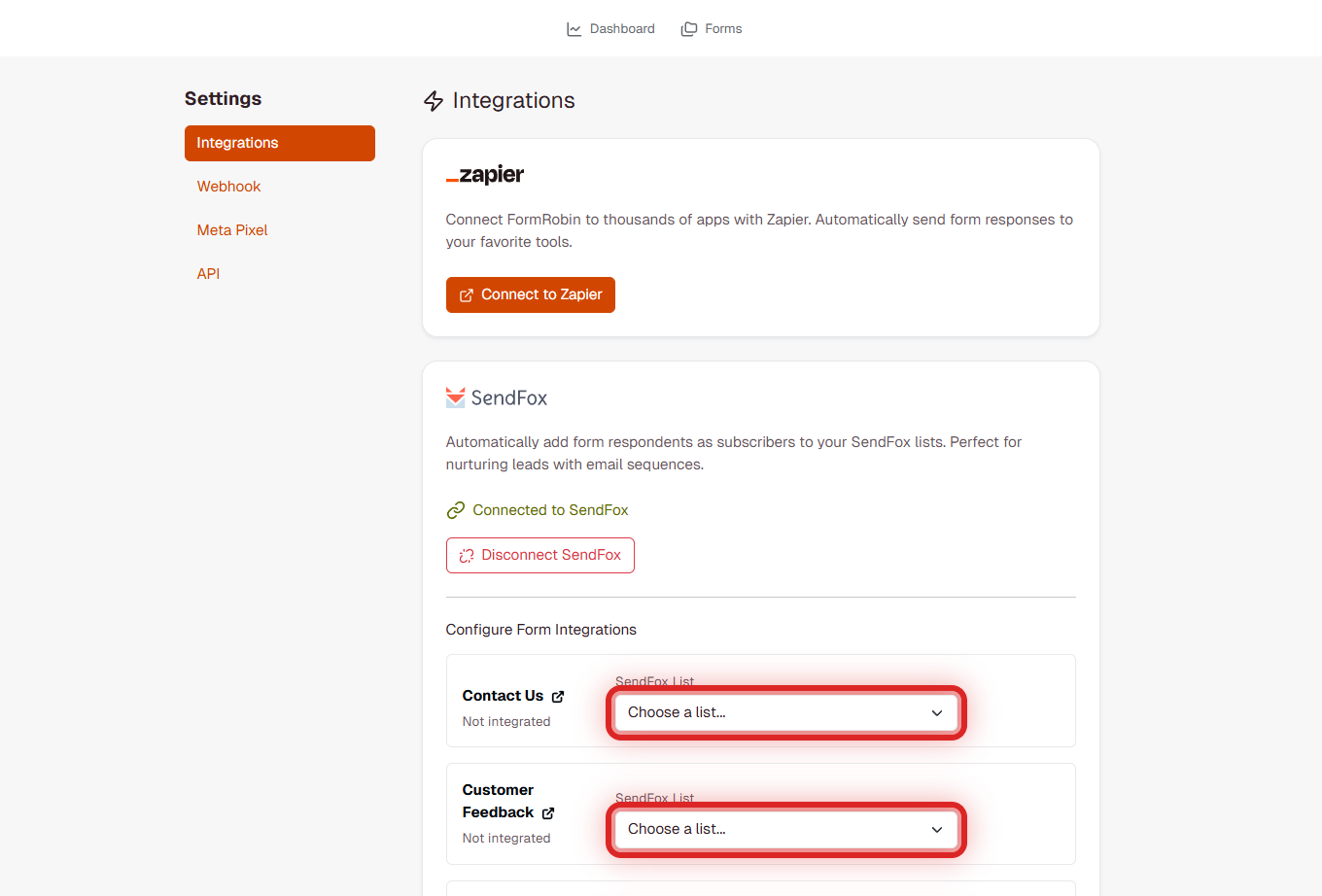
- On the Integrations page, go to Configure Form Integrations in the SendFox section. Every form is listed with its status (Currently integrated or Not integrated).
- For the form you want, open the SendFox List dropdown (Choose a list...) and pick a list. Each list shows its number of subscribers.
- Click Save All Integrations.
New submissions of that form are now added to the list. Forms are shown 10 per page; use the page links below the list to find more.
What data is sent to SendFox?
For each completed submission of a linked form, FormRobin sends:
- Email address - the answer to the form's Email question (required)
- First name and last name - taken from the first Short answer or Long answer response
- List - the SendFox list you chose for the form
A submission without an Email answer is not sent to SendFox. Other answers are not sent.
How are names sent to SendFox?
- FormRobin uses the first Short answer or Long answer response in the submission.
- The first word becomes the first name; everything after the first space becomes the last name ("Jane Doe Smith" → Jane / Doe Smith).
- If there is no such answer, the contact is added with its email address only.
Tip: make a "Full name" Short answer the first text question of the form.
Linking Multiple Forms
Each form can be linked to one SendFox list, and different forms can use different lists. Pick a list for every form you want to connect, then click Save All Integrations once. Duplicating a form does not copy its SendFox list, so link the copy separately (see Duplicating Forms).
How do I check that the integration works?
- Open the live form and submit a test response with a real email address.
- Open the list in your SendFox account.
- The new contact appears shortly after, because submissions are sent to SendFox in the background.
Managing Your Integration
Changing the Linked List
- Go to Settings → Integrations.
- Choose a different list in the form's SendFox List dropdown.
- Click Save All Integrations.
New submissions go to the new list; contacts already in the old list stay there.
Removing a Form Integration
- Go to Settings → Integrations.
- Click Remove under the form and confirm.
The form stops sending submissions to SendFox.
Disconnecting SendFox Completely
- Go to Settings → Integrations.
- Click Disconnect SendFox and confirm.
This removes every form's list link. If you connect SendFox again later, choose the lists again.
How does the integration work?
- Completed submissions only: a submission is sent after the respondent submits the form, whether the form is opened by link or embedded on a website
- Background processing: submissions are sent to SendFox in the background, so contacts appear shortly after
- Automatic retries: a failed send is tried up to 3 times
- New submissions only: submissions from before you linked the form are not sent
Limitations
- Email question required: submissions without an Email answer are not sent
- One list per form: each form sends to one SendFox list
- Email and name only: other answers are not sent to SendFox
- Paid SendFox plan: SendFox's API needs a SendFox plan with API access
Troubleshooting
My lists won't load, or I see "There was an error fetching your SendFox lists. Please reconnect your SendFox account."
- The most common cause is that your SendFox account's plan does not include API access. SendFox requires a paid plan with API access for integrations like FormRobin to load your lists and sync submissions.
- Reconnecting will not fix this — upgrade your SendFox account to a plan that includes API access at sendfox.com, then reload Settings → Integrations.
I can't connect my SendFox account
- If you see "OAuth authorization incomplete. Please try connecting again." or "Invalid state.", click Connect SendFox again and approve the connection in SendFox in the same browser.
No lists appear in the dropdown
- Create at least one list in SendFox. FormRobin loads your lists from SendFox each time you open the Integrations page, so reload the page afterwards.
Submissions aren't appearing in SendFox
- Check that the form shows Currently integrated and that it has an Email question the respondent answered.
- Only submissions made after the form was linked are sent.
- For more cases, see Troubleshooting: SendFox Connection Problems.
Still stuck? Email support@formrobin.com with the form's name and the message you see on the Integrations page.
Frequently Asked Questions
Can one form send to several SendFox lists?
No. Each form is linked to one list. To reach another list, link another form to it.
Will existing submissions be added to SendFox?
No. Only submissions made after you link the form are sent.
Can I send other answers to SendFox?
No. FormRobin sends the email address, first name and last name.
Does the integration work on embedded forms?
Yes. Submissions from embedded forms are sent the same way as submissions from the form link. To send responses to other apps as well, see Connecting FormRobin to Zapier.